
If there is a problem with a presentation and you want us to help, we can assist you in the most effective way if you send a diagnosis package along with your support request. Let’s walk through how such a package is generated:
-
In your presentation, open the menu and enable verbose logging. Starting with your next presentation, a detailed logbook of the algorithm’s layout decisions will be created.
-
Close the presentation tab and start the presentation from scratch - this makes sure the verbose logbook is created.
-
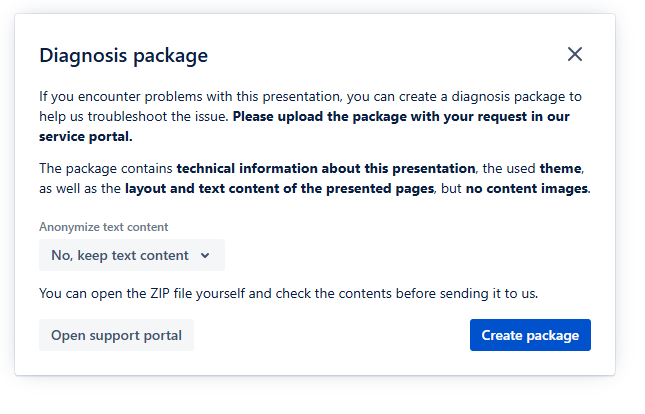
In the presentation, open the menu and click on “Diagnosis”. A popup appears:
-
Choose whether the content should be anonymized or not (see below)
-
Click “Create package” - a ZIP file is downloaded
-
Open our support portal, create a support ticket and attach the ZIP file
Anonymizing text content
If the presentation contains sensitive information, you can choose to anonymize the text content of the presentation. If this is done, every character is replaced by a random character of similar size and all images are replaced with placeholder images of similar size. This way, we only receive “letter soup”.
The diagnosis package is an ordinary ZIP file, so you can always inspect what information you share with us. More on that below.
As a rule of thumb, it is most effective you use a presentation that does not contain sensitive information and send us a package without anonymization. This way, we definitely see the same effects as you.
What a diagnose package contains
Always feel free to look into the diagnose package to learn what information you’ll share with us. Here’s a breakdown of the files in the package:
|
File |
Content |
What we use it for |
|---|---|---|
|
|
A copy of the whole content of the presentation just as Slide Presenter fetched it from Confluence. Images are replaced with placeholder images of the same size. If “Anonymize text content” is enabled, all text content is scrambled as well. |
We use this to replicate your exact presentation in our laboratory to see the exact same effects as you. |
|
|
The same as |
Only used in the rare case that the content processing for the placeholder images etc. masks the problem. |
|
|
Basic information about the package: Things like software versions, your operating system, the size of your screen, the base URL of the Confluence instance and whether you are a logged in user or not. |
This helps us pick the right environment for the presentation laboratory - we’ll use the same software, same window sizes etc. |
|
|
A complete logbook of the presentation layout process - which modifications were done, why which content was put on which slide etc. |
We trace the problem you describe in the logbooks to find out where the algorithm decided wrong. |
|
|
The theme you used for the presentation, as if exported via the “Export theme” function. |
We install the theme on our laboratory instance so we see the same layout and same effects as you do. |