
In the content formatting area, you control how your Confluence content is formatted in the presentation – you choose fonts, colors, margins, borders and similar aspects for the content that comes from your Confluence pages.
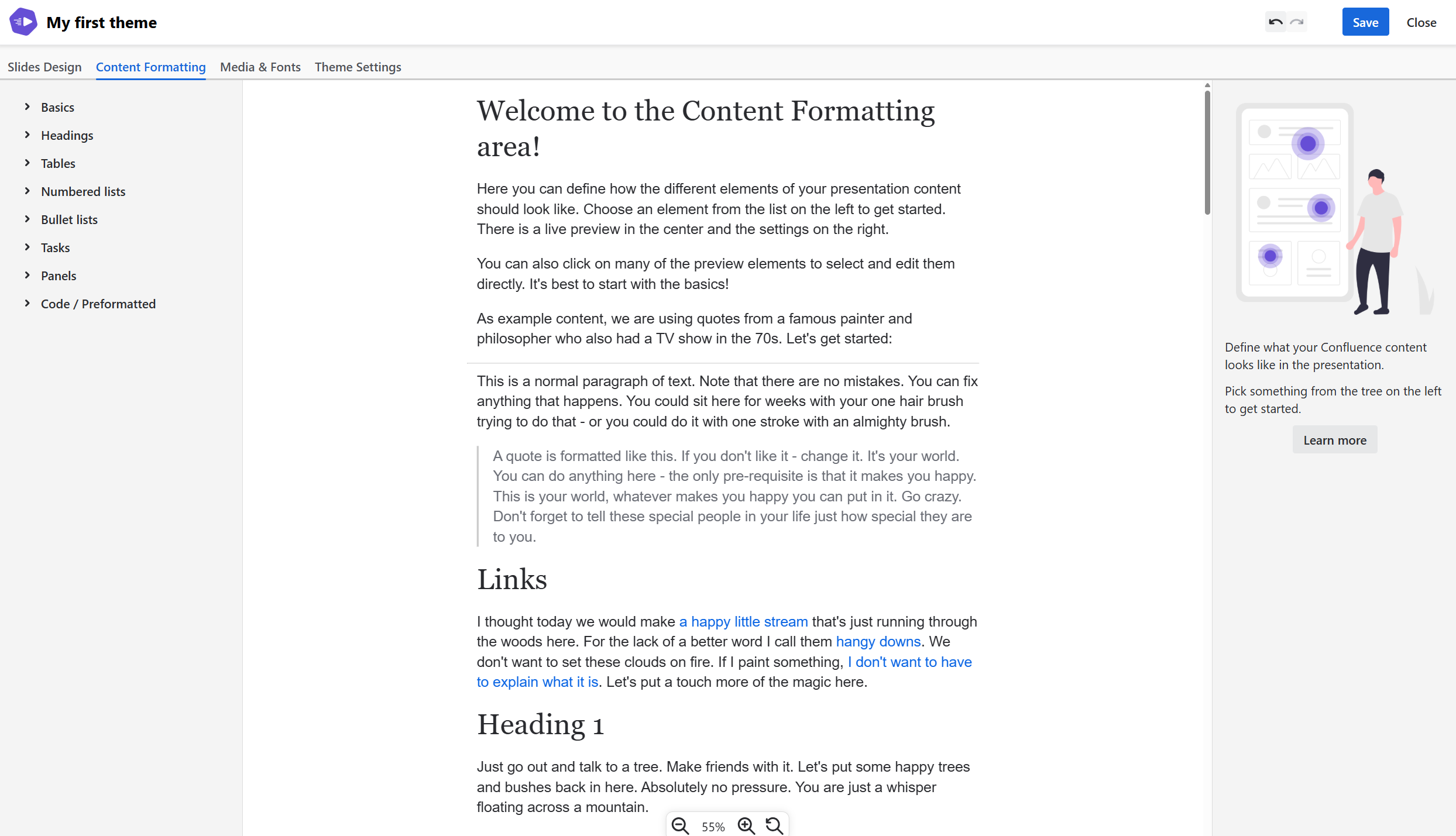
Choosing what to edit
Use the menu on the left to choose what aspect of content formatting to change. Choosing something in the menu will do two things:
-
In the center preview area, an example area will be highlighted - there, you can see your changes live.
-
On the right, the menu with all things changeable appears.
You can also click on most elements in the preview and the corresponding aspect will be selected.
The actual editing is straightforward - change what you want to change. Make sure to understand the formatting hierarchy and font sizes (see below) before diving into it. Backgrounds are the most complex element here, read more about them in Editing Backgrounds.
The formatting hierarchy
To keep changing things as easy as possible, elements inherit their properties from the “Basics”. So, when you choose a “Font for normal text” in Basics > Basic fonts, this font applies to paragraphs, links, quotes, numbered lists… everywhere.
You only have to set properties when you explicitly want to change them. For example, if you want your links to be a different font than the normal base font. It is best practice to change as little as possible so it stays easy for you to make changes that apply in many places.
Start by defining the basics, then walk through the preview and look for things you want to change.
Explicitly changed properties are marked blue.
Understanding font sizes
In Basics > Basic fonts, you choose a base font size in pixels. This is the only place pixels are used as the font size unit. All other places use “em” - this unit is a factor of the base font size. So, “2em” means “double of the base font size”. Although we display pixels, this is just a preview for your reading convenience.
This makes it easy for you to make the text smaller and bigger, with all elements keeping their relations. A headline with “2em” will stay double the size of a text with “1em”, no matter what you do to the base font size.