
In the Slides Design area, you design the actual slide templates. It should feel familiar as it works a little like other presentation software you already know.
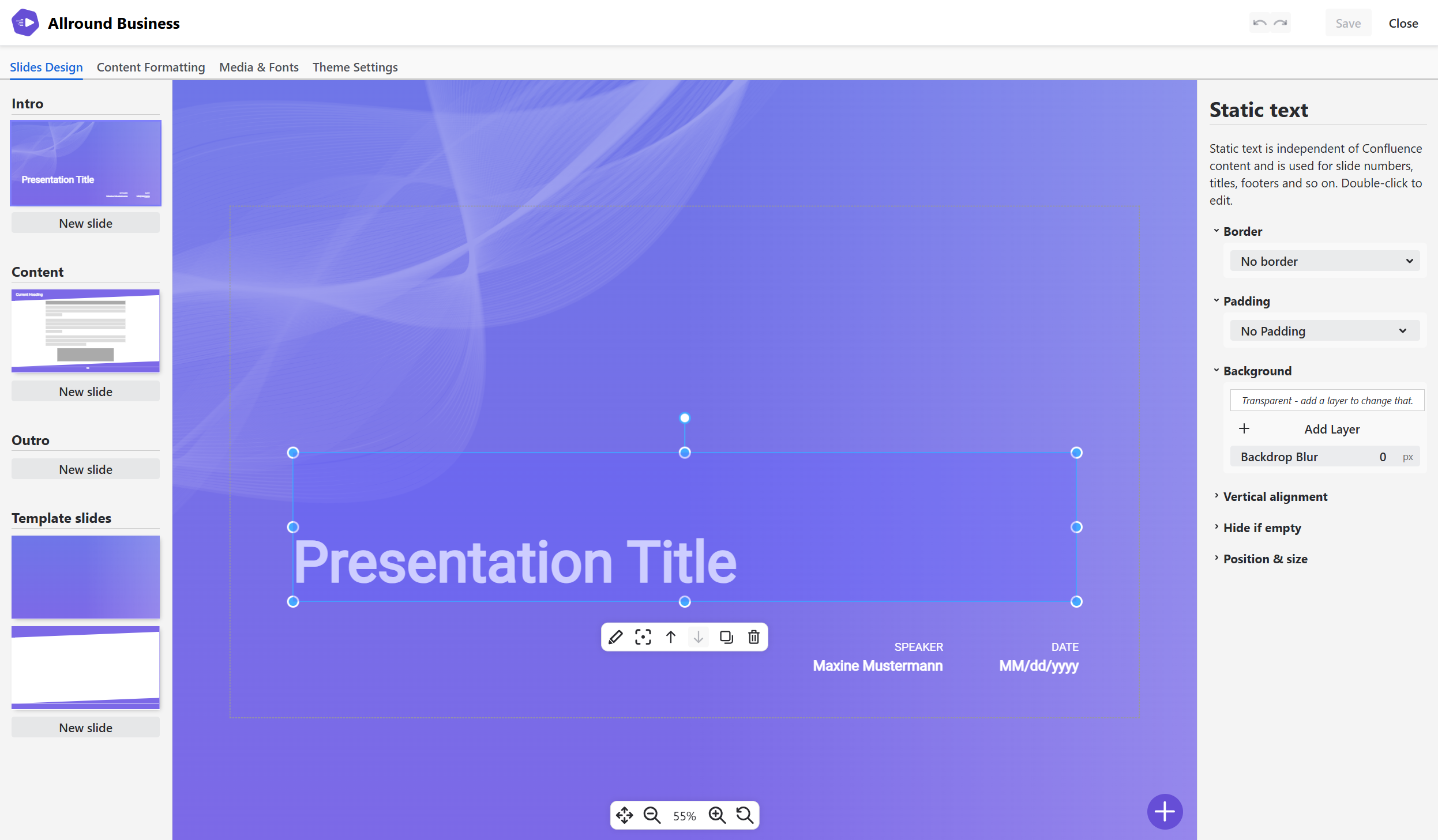
💡 The most important concept: The actual content of your presentations comes from Confluence pages, not from the Slides Design. You design the “surroundings” of your content. Slides can contain a Content area element, that is the area where the Confluence content will be. The styling of the Confluence content is defined in Content Formatting.
The anatomy of a presentation
Intro, Content & Outro
Each presentation follows the same structure - optional intro slides, then as many content slides as necessary for the presented content, then finally optional outro slides.
-
Intro and outro slides begin and end the presentation. They contain no Confluence content, but you can use placeholders for the presentation title, for example. Ideal for title slides, contact details, copyrights, legal. Learn more about intro & outro slides.
-
Content slides are the heart of the presentation, this is where the Confluence content is displayed. Learn more about content slides.
Template slides are your little helper
Template slides are helpers for the other slide types - they can be chosen as background for other slides. You can put common design elements on the template slide and reuse them. Learn more about template slides.
Classic example for Template slides: create a template slide that defines your Corporate Identity background, slide numbers and a common footer like “name of the presenter and date”. Then reuse it on every other slide design.
Elements on a slide
Think of slides as a drawing canvas. You can place any number of elements on them, place them freely, sort their stacking order and rotate them as you see fit. Use the floating plus button on the bottom right to add elements to the current slide!
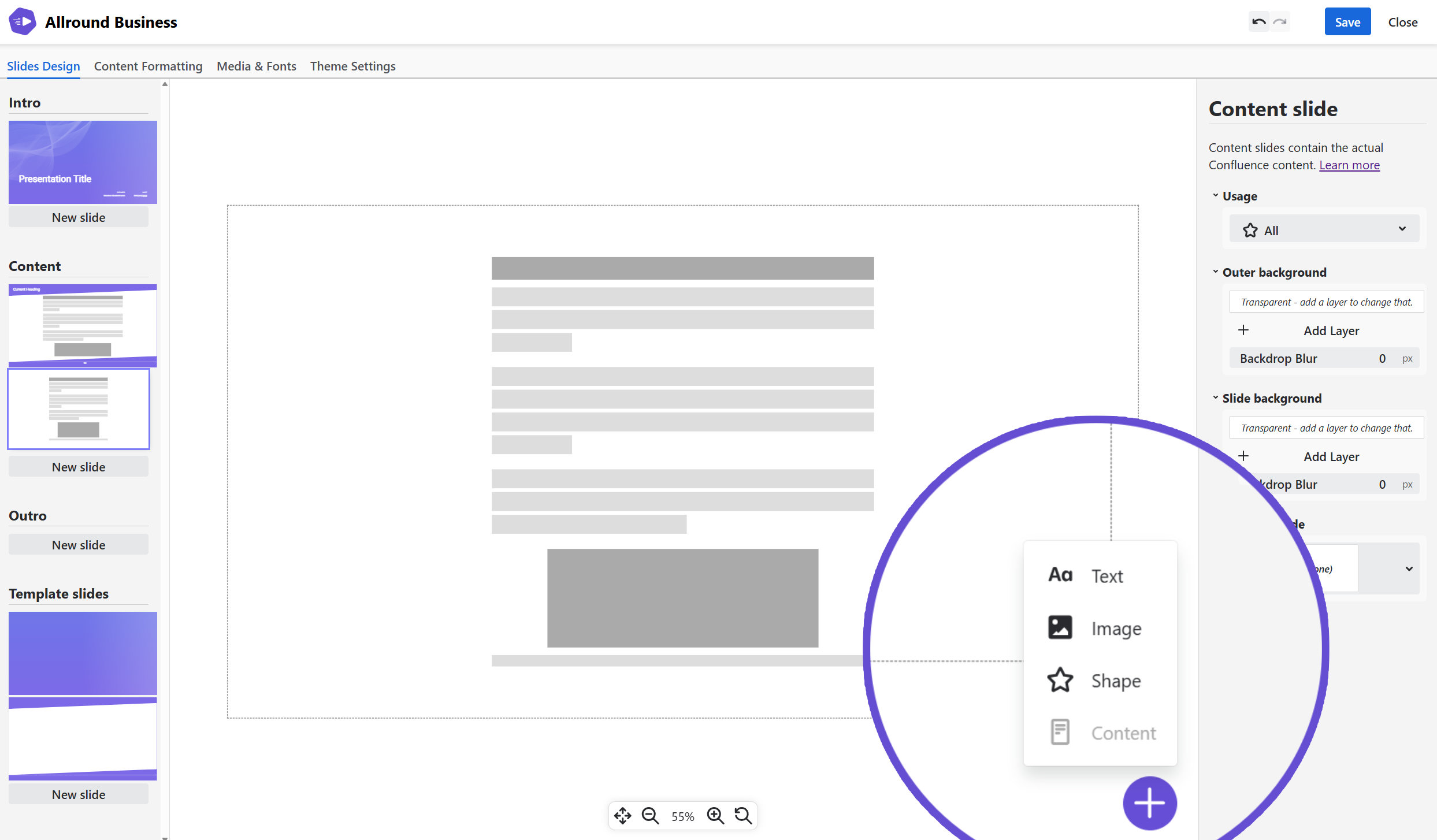
There are four types of elements:
-
Text: Static text that can contain placeholders. You can create headlines, footer texts or legal text blocks your presentations need.
-
Image: An image from your Media & Fonts collection, placed freely on the slide. Use this to add design elements & logos. You can also use placeholders like user profile pictures, page header images or space icons.
-
Shape: A simple geometric shape to help you design & structure the slide.
-
Content: A placeholder for the actual presentation content. Define where and how the content will appear on your slide.
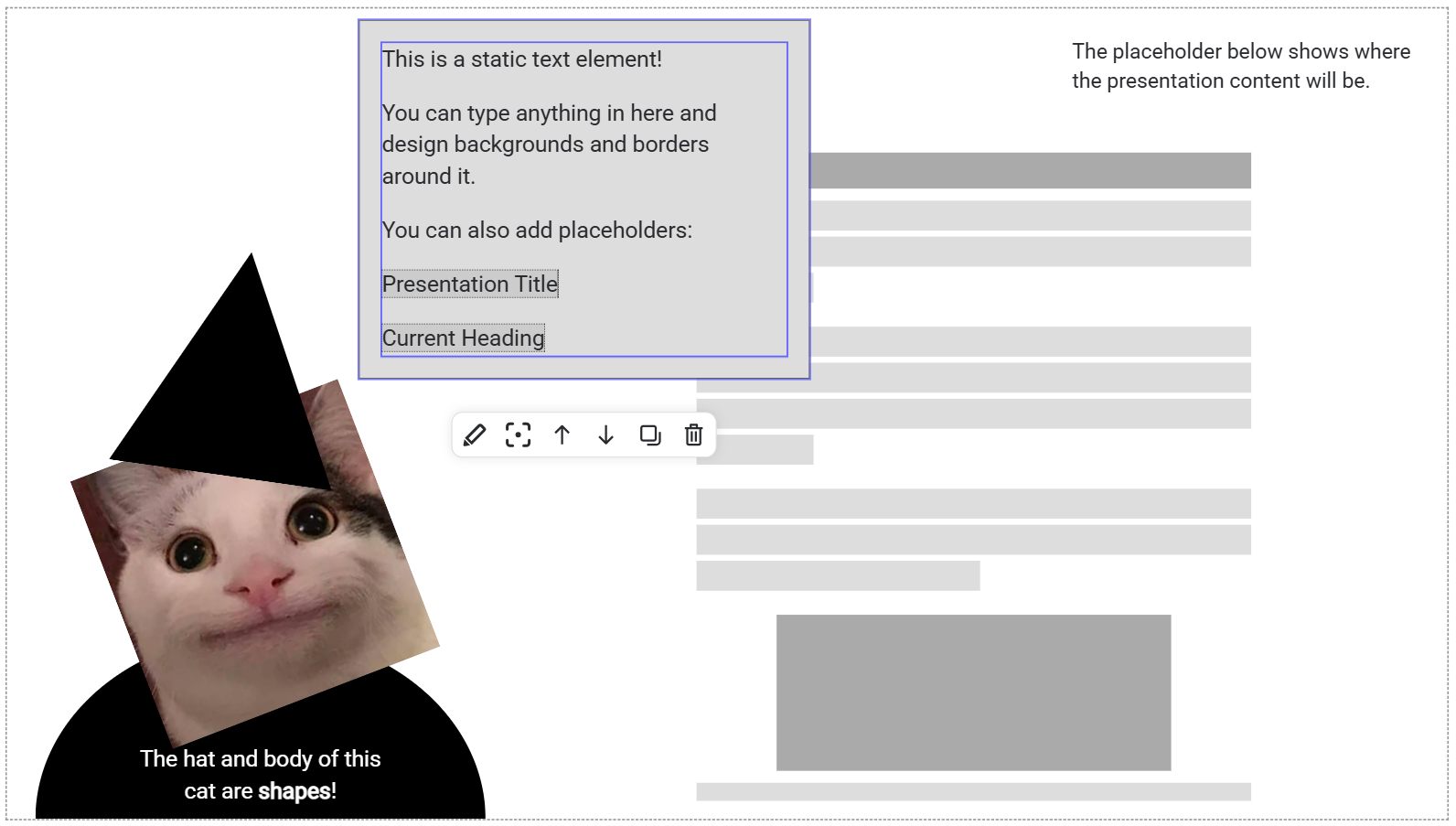
The following slides demonstrates all four types of elements (in arguably bad taste) side by side:
Slide backgrounds
Slide presenter has a very powerful background system that allows you to design spectacular backgrounds for your slides. Slides even have two backgrounds!
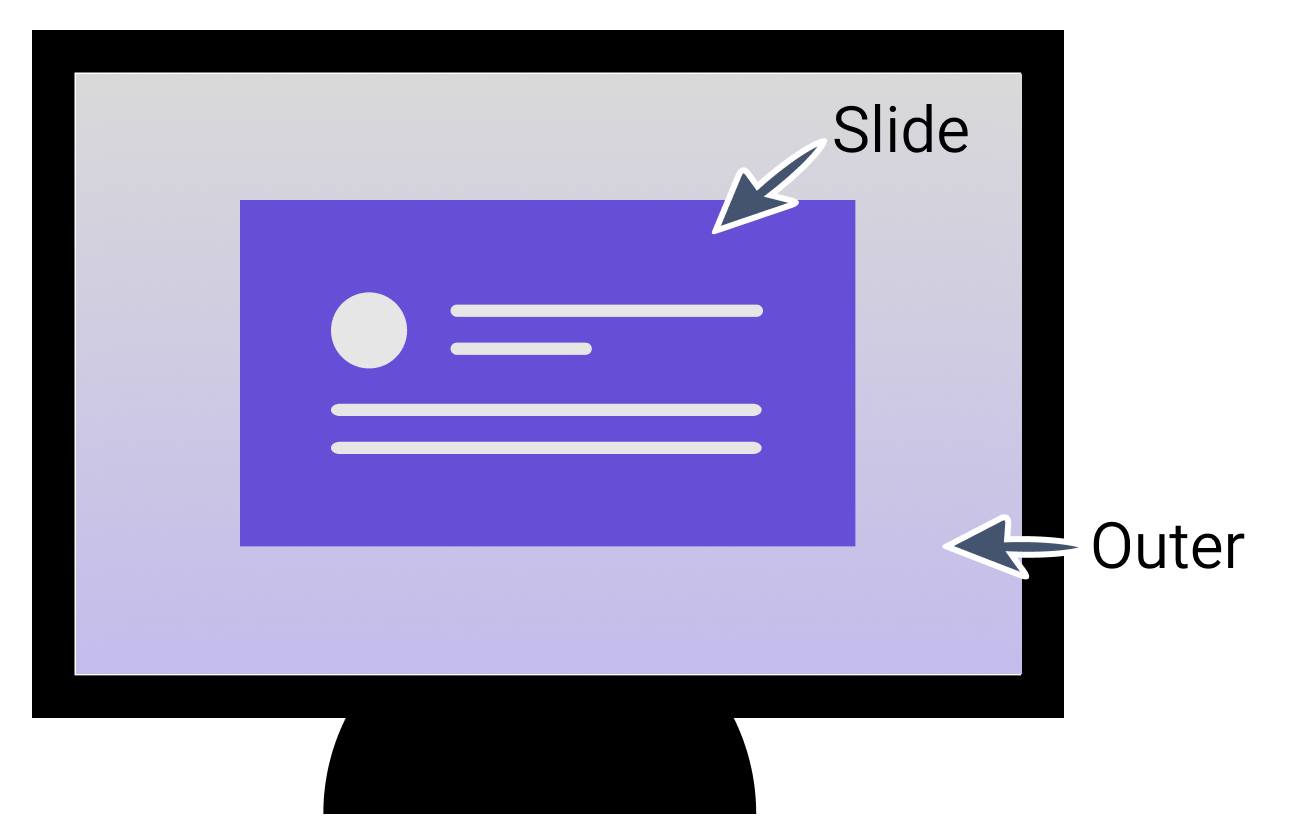
Consider your screen. In most cases, the dimensions of the screen do not match exactly the aspect ratio of your presentation slides. This leaves you with some screen real estate that is not slide. What should be there? For Slide Presenter, this is the “Outer background”.
-
The “Slide background” is the background for the area of your slide - an area in 16:9 format, for example.
-
The “Outer background” is the design for all screen (and paper in case of PDF Exports) space where there is NO slide.
Both backgrounds can be designed in the same way. See “Editing Backgrounds” to learn how.
If you don’t care too much, simply do it like PowerPoint and let the Outer background be solid black. If you feel creative, you can create beautiful effects with the interaction of slide and outer background.