
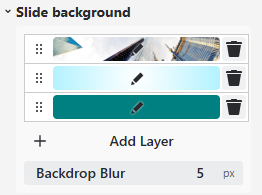
Many elements in the theme editor have backgrounds:
-
Most elements in the Content Formatting area
-
Even slides themselves
Backgrounds are a mighty tool that can create amazing effects. Let’s walk through how backgrounds work!
Backgrounds have layers
A background can contain any number of background layers. The layers are stacked on top of each other. This makes sense if the upper layers have some transparency so the lower layers can shine through.
Using transparent layers, you can create amazing effects:
-
Multi-direction gradients
-
Multiple images, partially hidden by other layers
-
Much more!
Adding new layers
It’s easy - click the “Add layer” button and choose whether it will be a color (this includes gradients) or an image.
Sorting layers
Upper layers in the list are in front of the bottom layers. You can sort them by drag and dropping the layers at the ripped drag area in the front.
Backgrounds can be colors, gradients or images
You can add layers that are colors, gradients (linear or radial) or images from your theme media collection. Full colors and gradients have a transparency. Images in PNG or SVG formats can have transparent areas, as well. You can use that to let layers below shine through.
The color / gradient picker
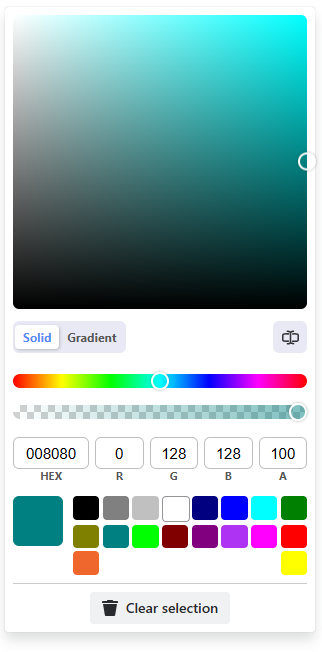
The color picker works like what you would expect from a color picker. Some important things to know:
-
Solid / Gradient switches between solid colors and the gradient editor
-
The A value is “Alpha”, the transparency of the color. 100 means fully solid, 0 means fully invisible.
The gradient editor
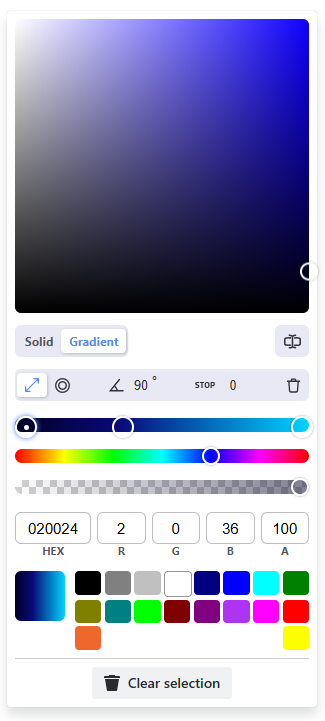
Gradients have multiple “stops”. Each stop represents a color value. The way between the stops is interpolated.
Working with stops
-
There is a bar on top of the color hue bar with multiple circles.
-
They represent the “stops” of the gradient.
-
The active stop has a white dot. Choose another one by clicking on them.
-
Create new stops by clicking on an empty spot in the bar
The active stop can be edited:
-
Delete it with the trash icon on the top right
-
Change its position with the “stop” value - the range is 0 to 100. You can drag it as well.
-
If you pick a color, it is applied to the current stop.
Linear and radial gradients
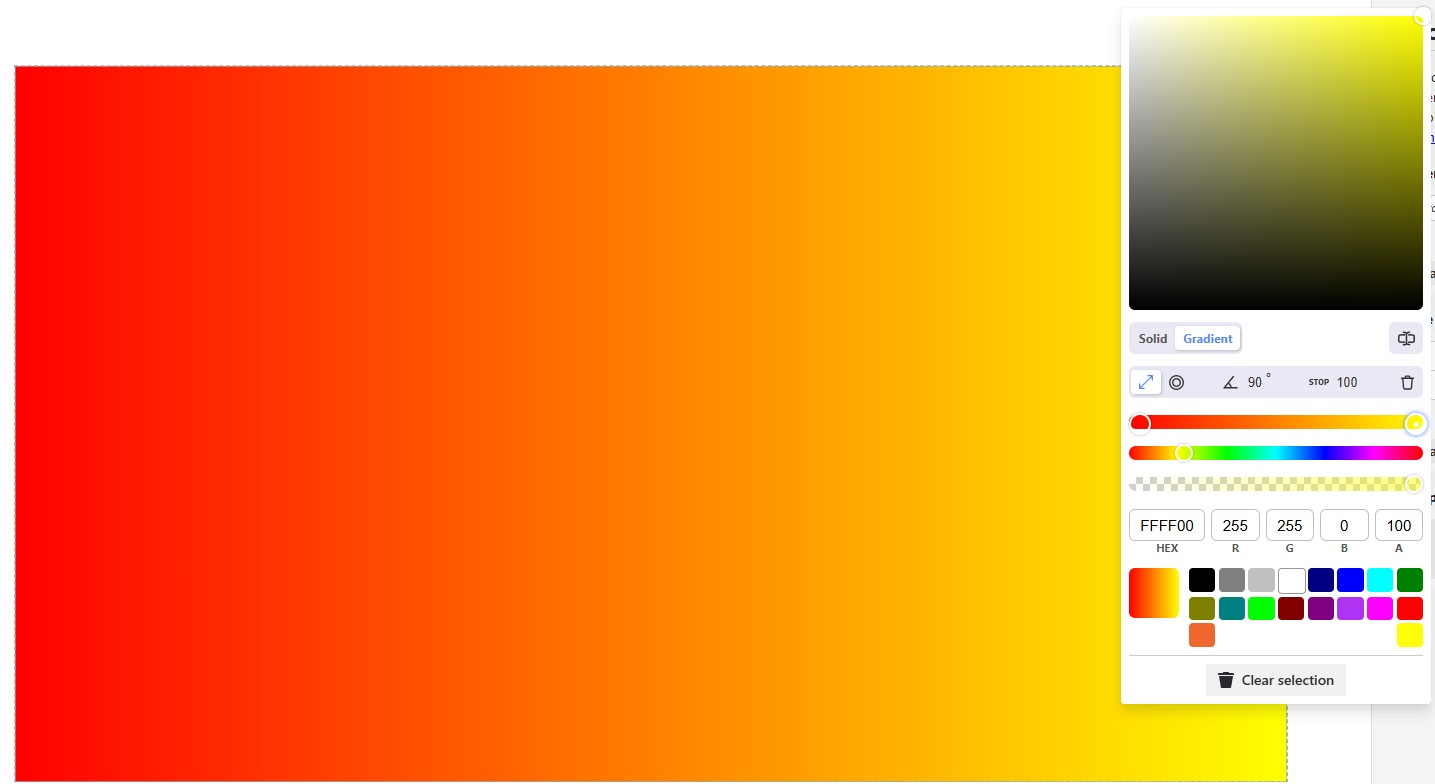
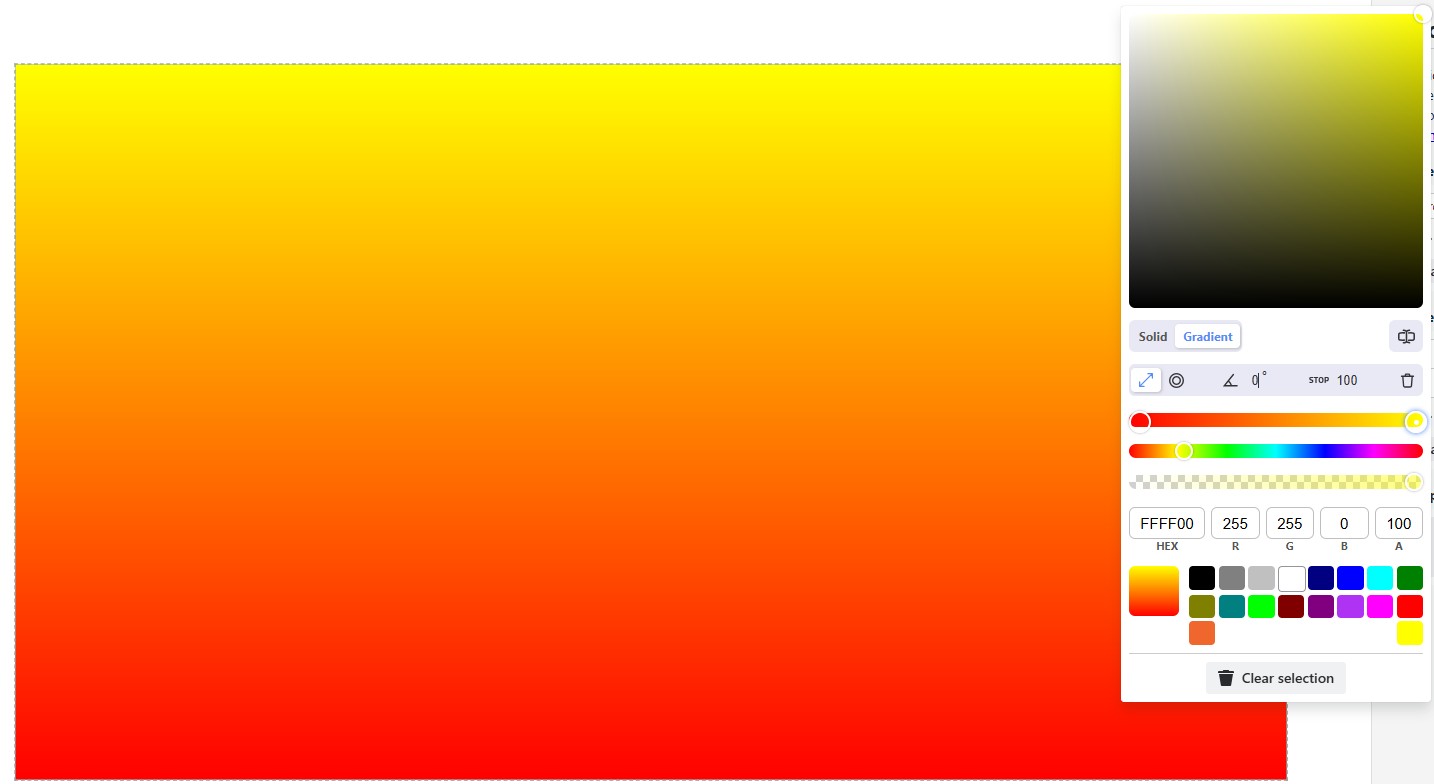
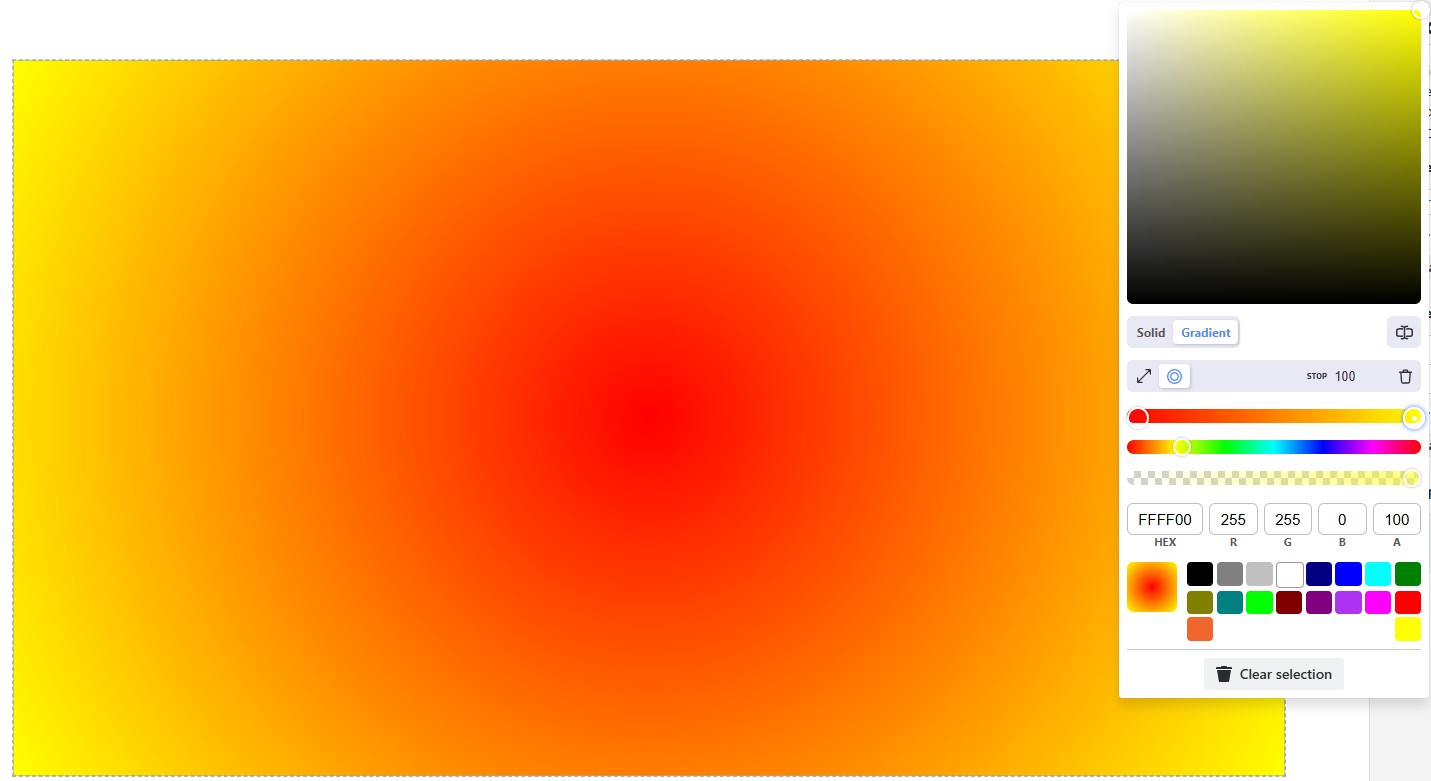
The gradient can be linear (going from one side to the other) or radial (going concentric). For linear gradients, you can choose the angle.
Images
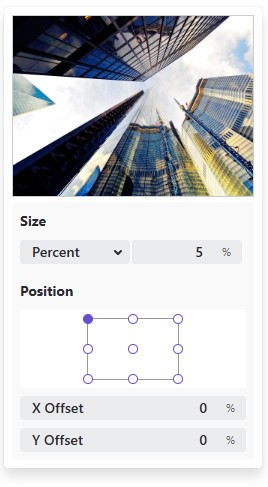
When you’ve chosen an image, you can edit how it will be used in the background.
Size
”Cover” and “Contain” behave like the “Object fit” options for image elements. The option “Percent” is something new:
-
Cover: The image covers the whole element and is cropped if necessary
-
Contain: The image is completely contained inside the element, transparent areas in the element appear if the image is smaller
-
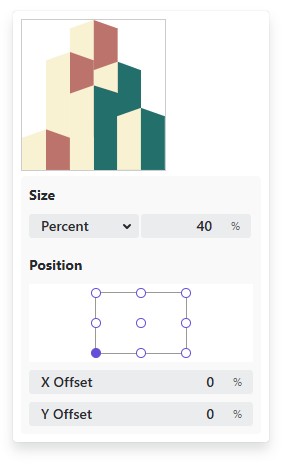
Percent: The image covers a certain percentage of the element, with 100% being equal to “Cover”. This is an interesting size mode if you want to place an image in one of the corners!
Position
You can choose where on the element the image is anchored.
Backdrop Blur
The backdrop blur applies a blurry glas pane effect to everything below the element. It is only visible if the background is somewhat transparent, of course. Having no background layers at all will do the trick as well.
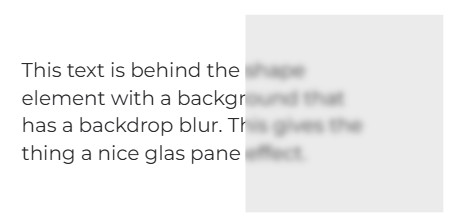
In this example, a rectangular shape element has a very transparent gray background (just for you to recognize the shape) and a backdrop blur of 5px. The text below looks blurred.
Attention: Using backdrop blur is incompatible with any slide transition animations except for “None” or “Slide”. If backdrop blur is used anywhere in the theme, non-compatible slide transition animations are automatically reverted to “Fade”. Also note that the fading looks a little less nice because the incompatibility disables alpha channel animations.
So, if you don’t intend to use it, make sure to not use backdrop blur values randomly!
🤖 For the technically inclined: The slide transition animations use animated opacity and this triggers a new Backdrop Root, which disables the backdrop blur altogether, making it jump in slide transitions. As this is kind of a design decision in the backdrop standard, it seems like we’ll have to live with it.
Background recipes
Place images in the background with percent size
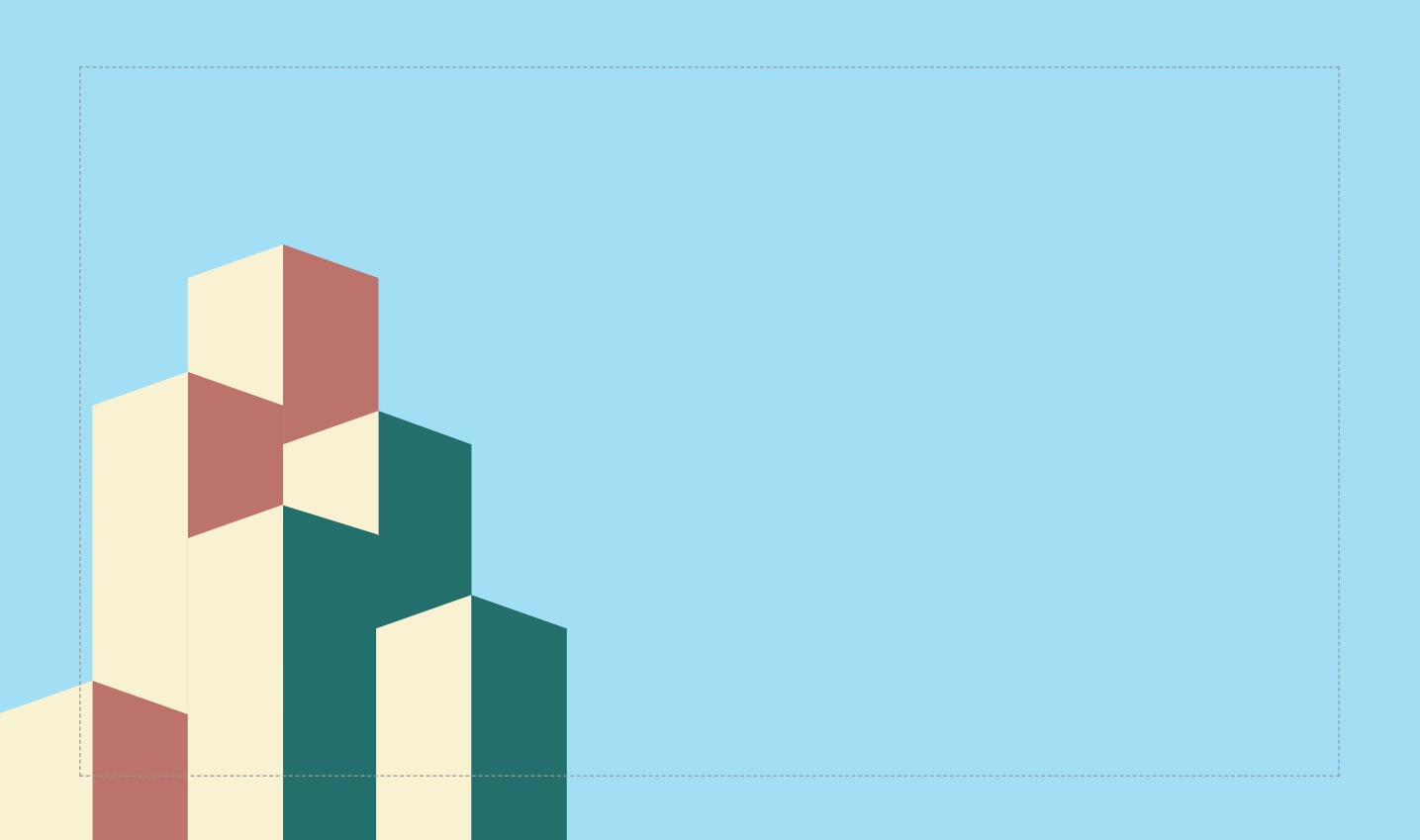
We have a background with a solid color. On top of it in the lower left corner, there is an image. No matter how the window & screen are sized, the image will always stay like this in the corner. This is done with two layers - a solid color layer in the background and the image configured like this:
Multi-dimensional gradients
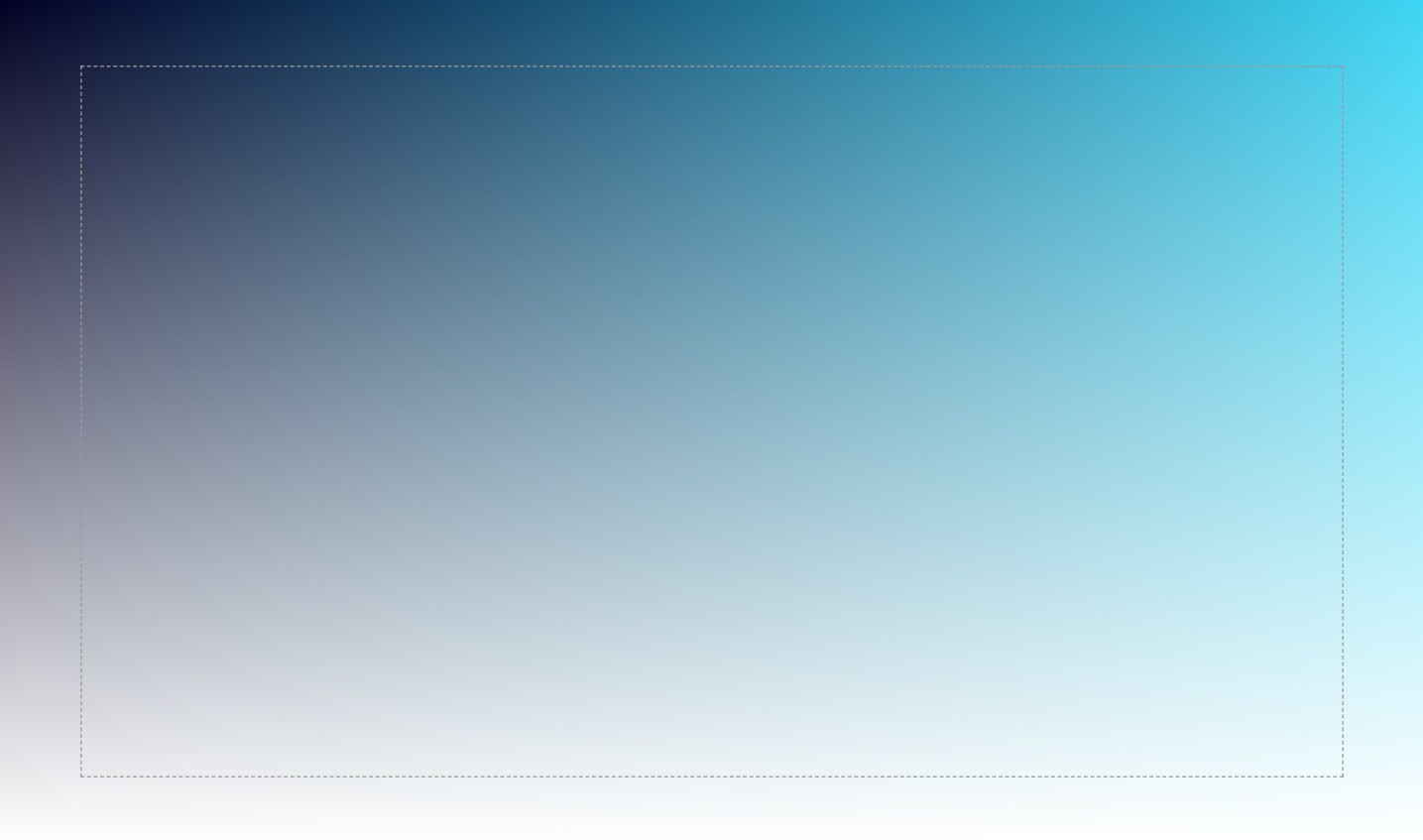
We have two overlapping gradients. This is done with one “normal” 90° gradient and a 0° gradient with transparency on top.