
Page Layout Handling
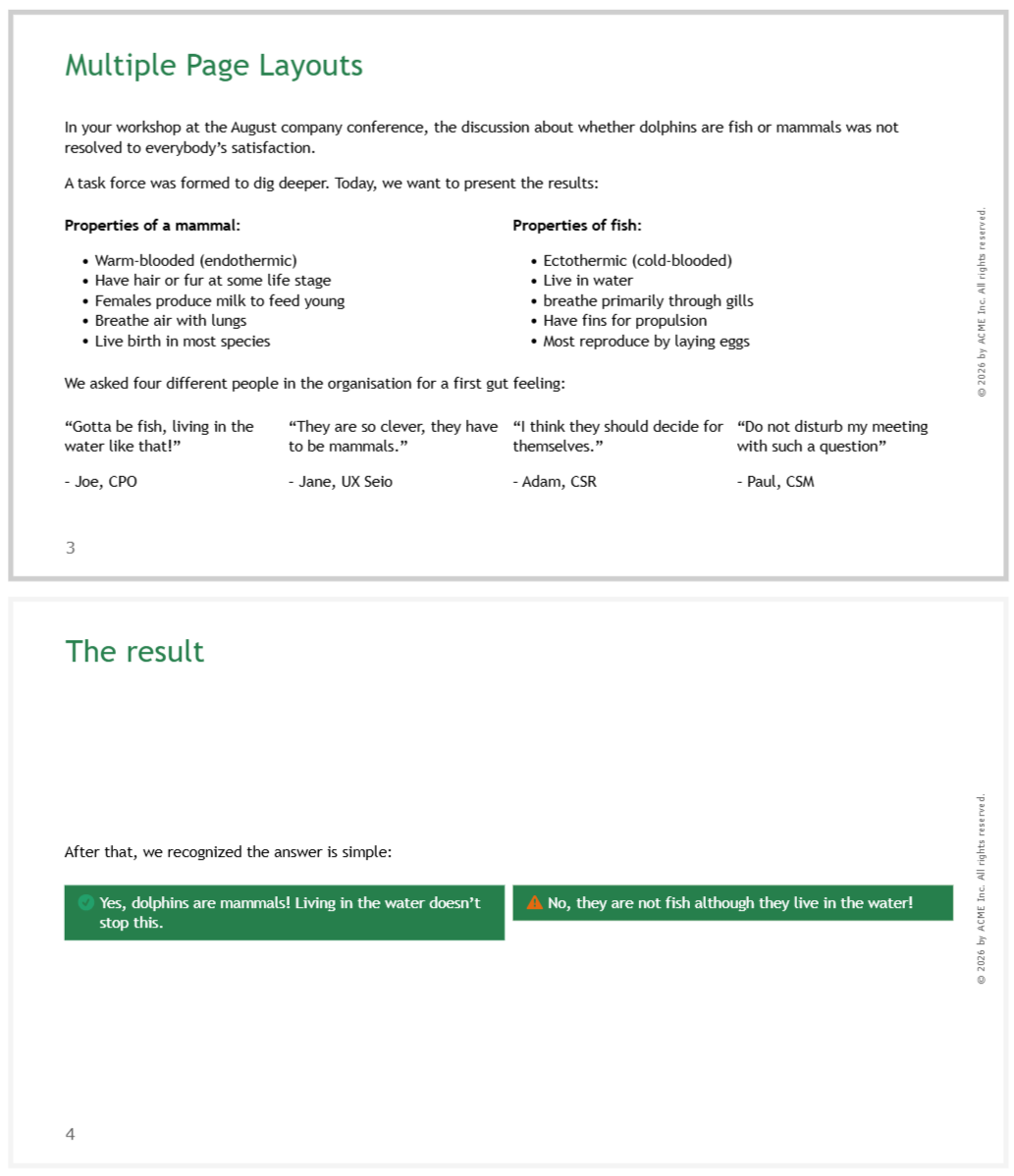
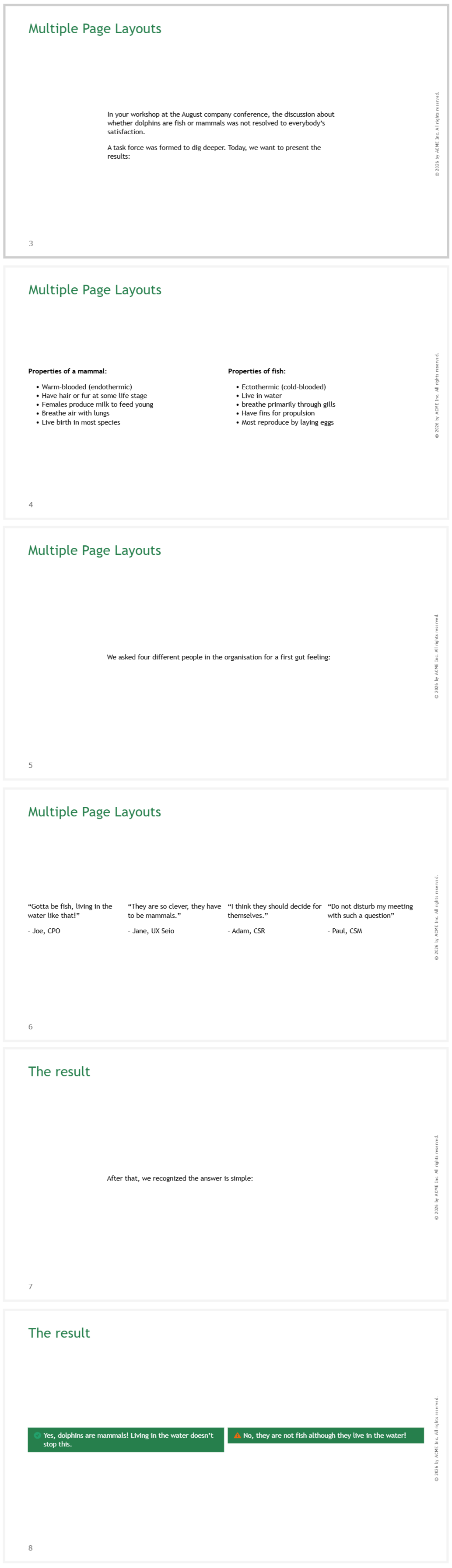
Choose how multi-column page layouts should be handled in your presentation - will each page layout start a new slide or will multiple page layouts fit on the same slide? For reference, consider the following (exaggerated) example of a multi-column layout:
Normal:
Slide Break:
Autoplay Media
Determine whether videos and audio files should start playing automatically when a slide is shown.
If they do not play automatically, you have to click them to start playing.
Omit First Headline
Choose whether to include the title of the root page as a headline at the beginning of the presentation content. You should omit the headline if your theme contains a dedicated title slide.
Only keep this first headline if your theme does NOT use a title slide with the presentation title on it.
Image Size Factor
Modifies the size of all images in the content. This is useful if the images in your presentation feel too small. Please note that images can never be bigger than the content area - they will be scaled appropriately.
Widow Margin Factor
Widow handling can make your presentations look more balanced.
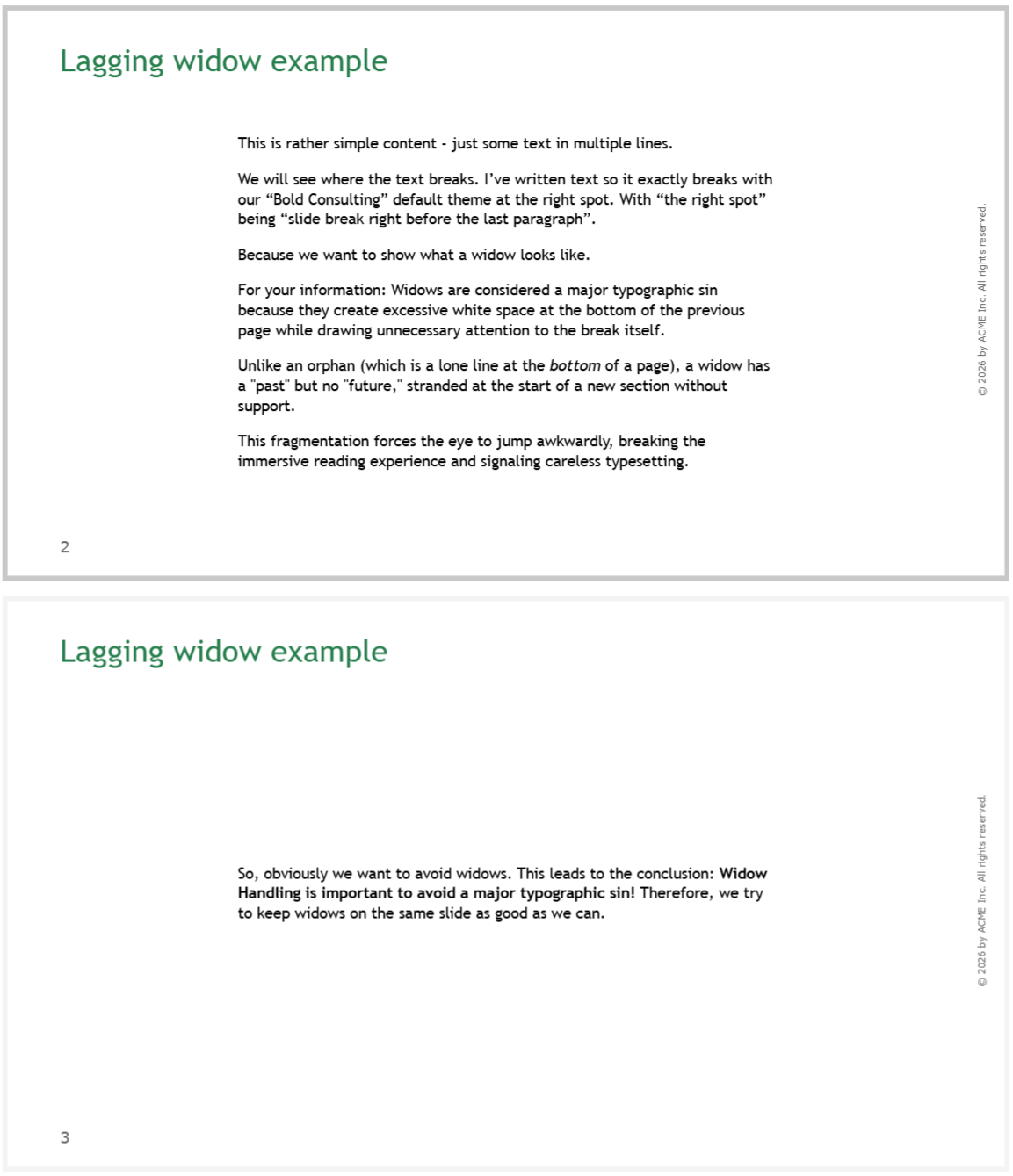
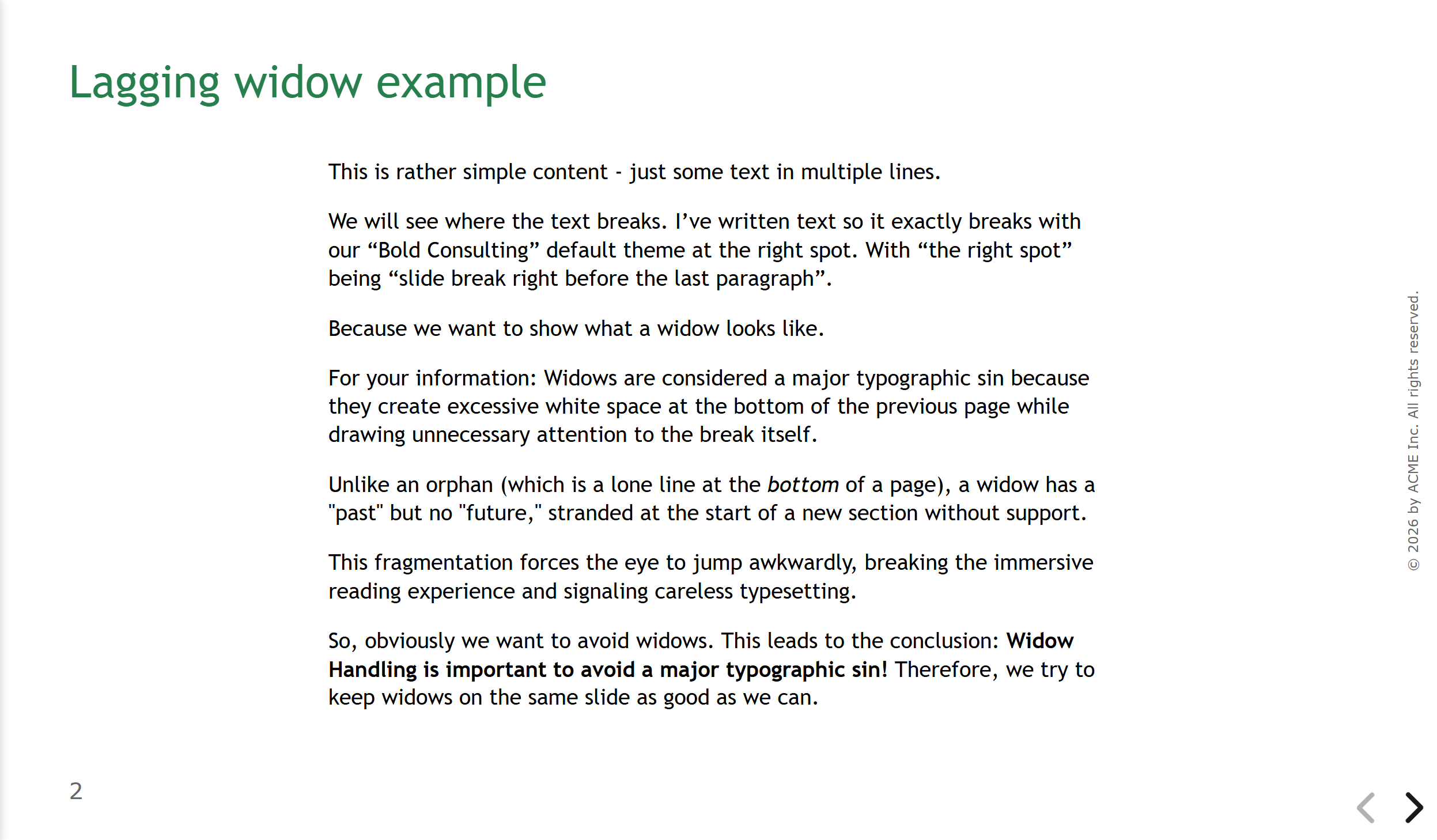
A widow is a small portion of text that appears isolated at the top of an otherwise empty slide. To avoid widows, the layout algorithm reduces the font size of the slide before so the widow fits on the same slide.
The value you choose is the maximum allowed shrinking of the font size on the slide before - so 10% means “Shrink the font size up to 10% to avoid having a rather empty next slide”.
10% is a sane default. To demonstrate the effect, here is an example with 20%:
No Widow Handling:
20% Widow Margin Factor:
Leading Widow Factor
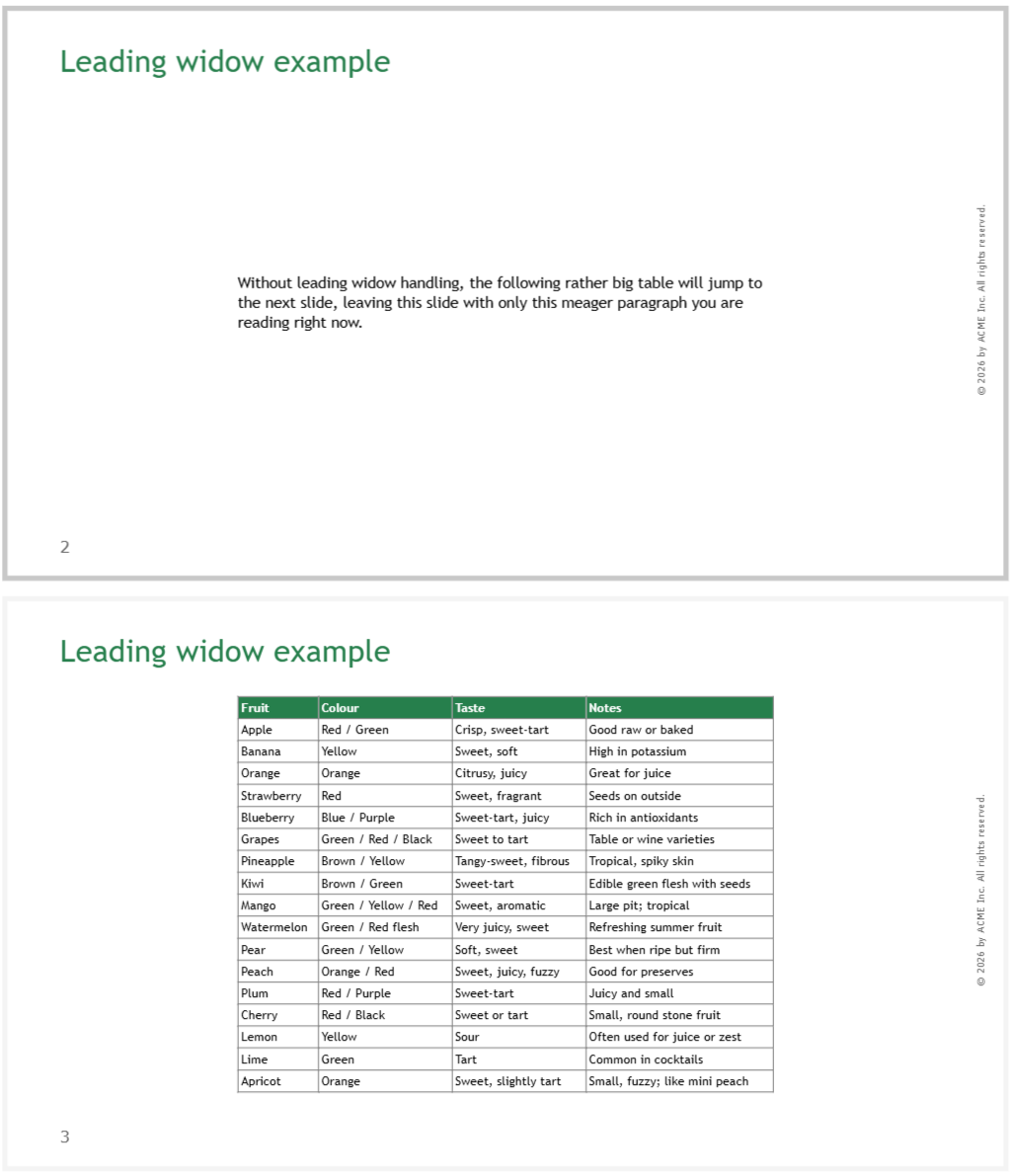
A leading widow is caused by a following big piece of content that gets pushed to the next slide. If the slide is only filled the chosen percentage, the layout algorithm tries to fit more content on the slide to avoid the leading widow.
For leading widows, 25% is a sane default. Here’s an example of the effect:
No Leading Widow Handling:
25% Leading Widow Factor:
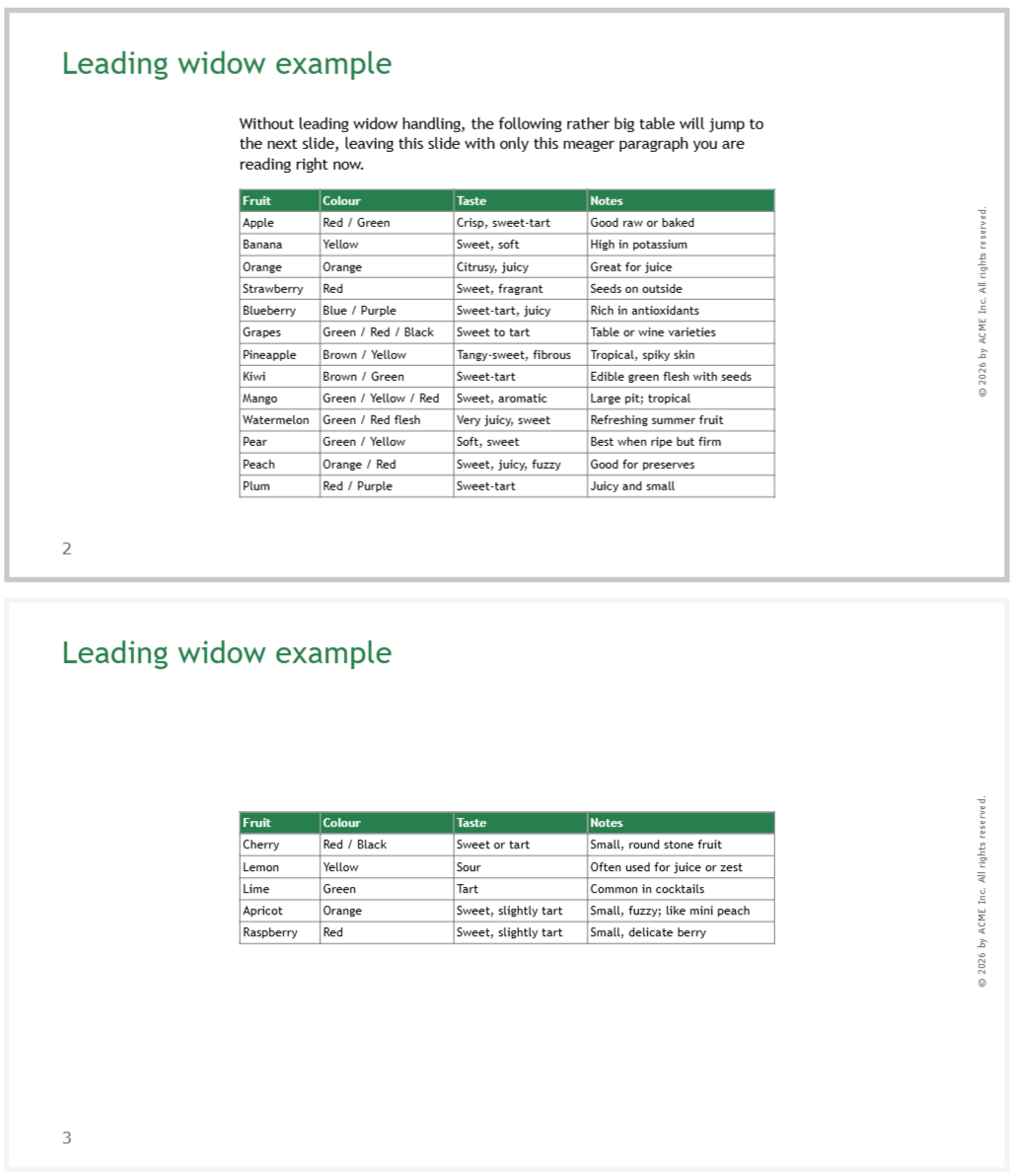
Note how the beginning of the table is pulled on the first slide because it was too empty / filled below 25%.