
The export settings described here only apply to modern themes. If you still use a legacy theme, learn more about its PDF export functionality here - and consider upgrading your theme!
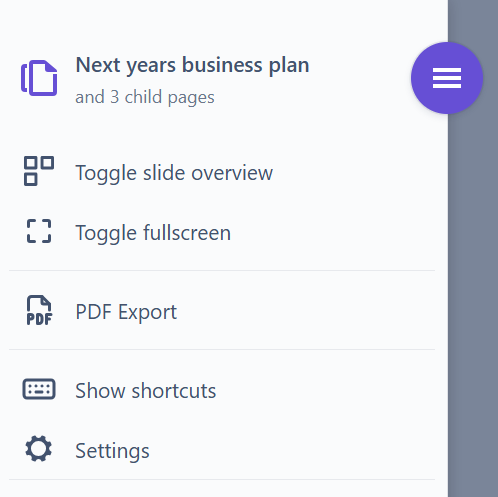
Slide Presenter supports exporting your presentation to a PDF file. Start the presentation as you are used to and open the presentation main menu, then click on “PDF Export”.
A dialog appears that lets you configure the export:
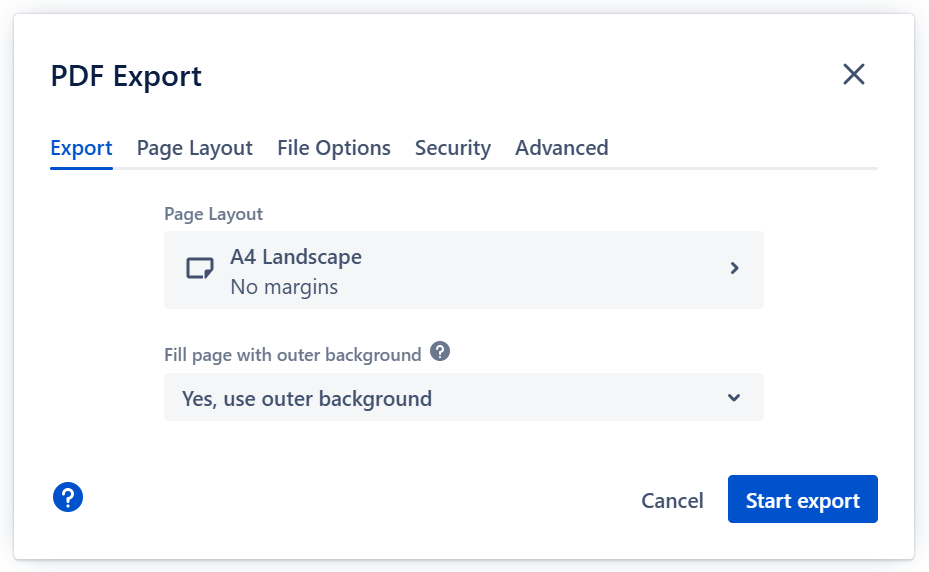
The default values for all these export properties are set in the theme - so if you want to regularly use certain naming schemes, have certain paper formats etc., just preset it in the theme editor.
All options are explained on the PDF Export options page.
Pro Tipp: The PDF export will use your presentation exactly in the state it is when starting the export - so if you have embedded widgets or iFrames, for example, and want them to show a certain state, prepare each slide as you want it and start the export then.
There are two different export methods
For most presentations, you can simply hit the “Start export” button and Slide Presenter will start to create a beautiful PDF file.
But some rather rare elements in a presentation cannot be exported directly. If your presentation contains such an element, Slide Presenter uses the Screen Capture export method.
About exported PDF file sizes
The file size of the exported PDF file depends on the visual complexity of the content. As a rule of thumb “the more different colors you can see, the bigger the file”.
If you aim for small file sizes, avoid gradients and big images in backgrounds. Fonts do not make a notable difference.
Next: Take your presentation game to the next level with our Slide Presenter Macros.