
Certain elements in your presentation hide their content from our PDF file creation process - especially iFrames. So, things like external widgets, embedded websites and videos appear as “Cannot be exported”.
This happens because of security rules in your browser - websites cannot simply access the content of another website.
To get around that and give you a complete PDF export, we have created an alternative export method: the screen capture export.
Slide Presenter recognizes that your presentation contains elements that cannot be exported directly and switches to this export method by itself. You just have to follow the process.
How the screen capture export works
The screen capture export uses the “share your window” feature you might already know from online conferencing tools like Zoom. Slide Presenter asks your browser to give it a video stream of your current browser tab. It then extracts the slides from the video stream.
The genius thing about this: the video stream contains all presentation content. To start the process, you just have to click “Start sharing”.
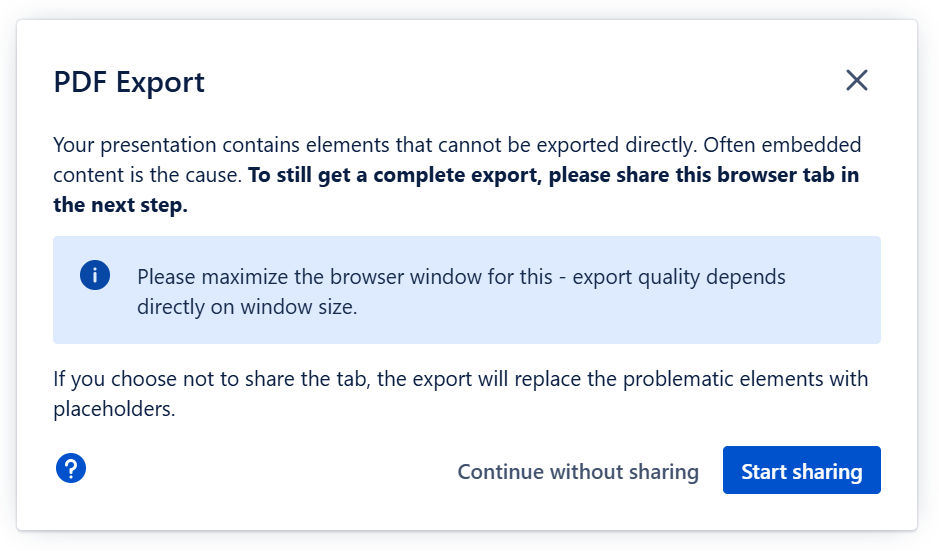
If, for whatever reason, you do not want to use the screen capture method, you can also “Continue without sharing”. The elements in question will then be replaced with placeholders.
The screen capture depends on the window size
The method has one drawback you need to know about: the video stream of your presentation contains as many pixels as your browser window is big. This means:
-
Small browser window → Small video stream → low-resolution export with blurry slides
-
Big browser window → Big video stream → high-resolution export with crisp slides
So, please maximize your browser window before starting the screen capture export!
Comparison of export methods
|
|
Normal method |
Capture method |
|---|---|---|
|
Exports normal content |
|
|
|
Exports embedded content |
|
|
|
Export resolution independent of browser window size |
|
|