
There are many options to customize your PDF exports. We’ll walk through them all, right here - sorted by the tab they can be found in.
Export
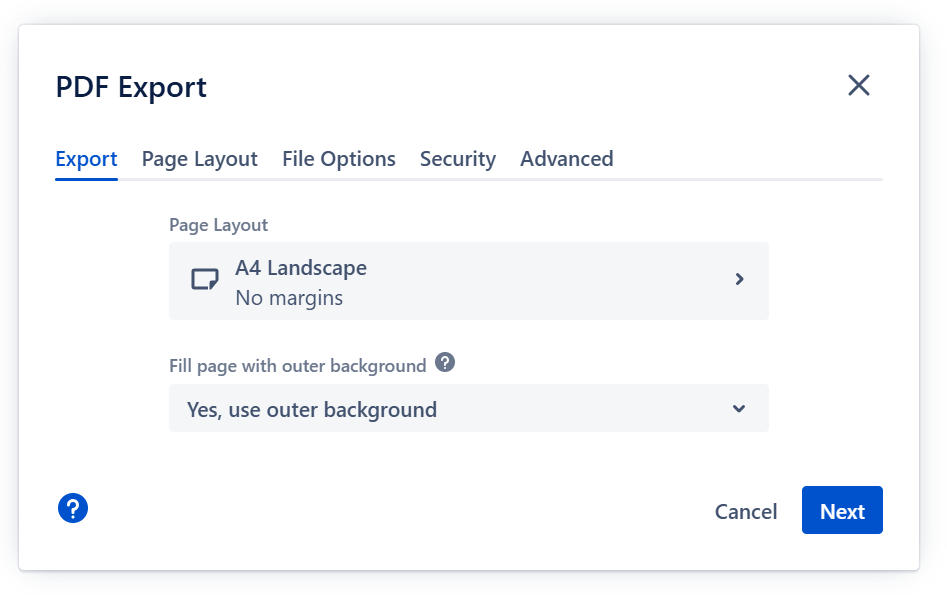
Fill page with outer background
Most of the time, the aspect ratio of your presentation will not match the aspect ratio of the paper you export on. This leaves gaps on the paper, which we call “the outer background”:
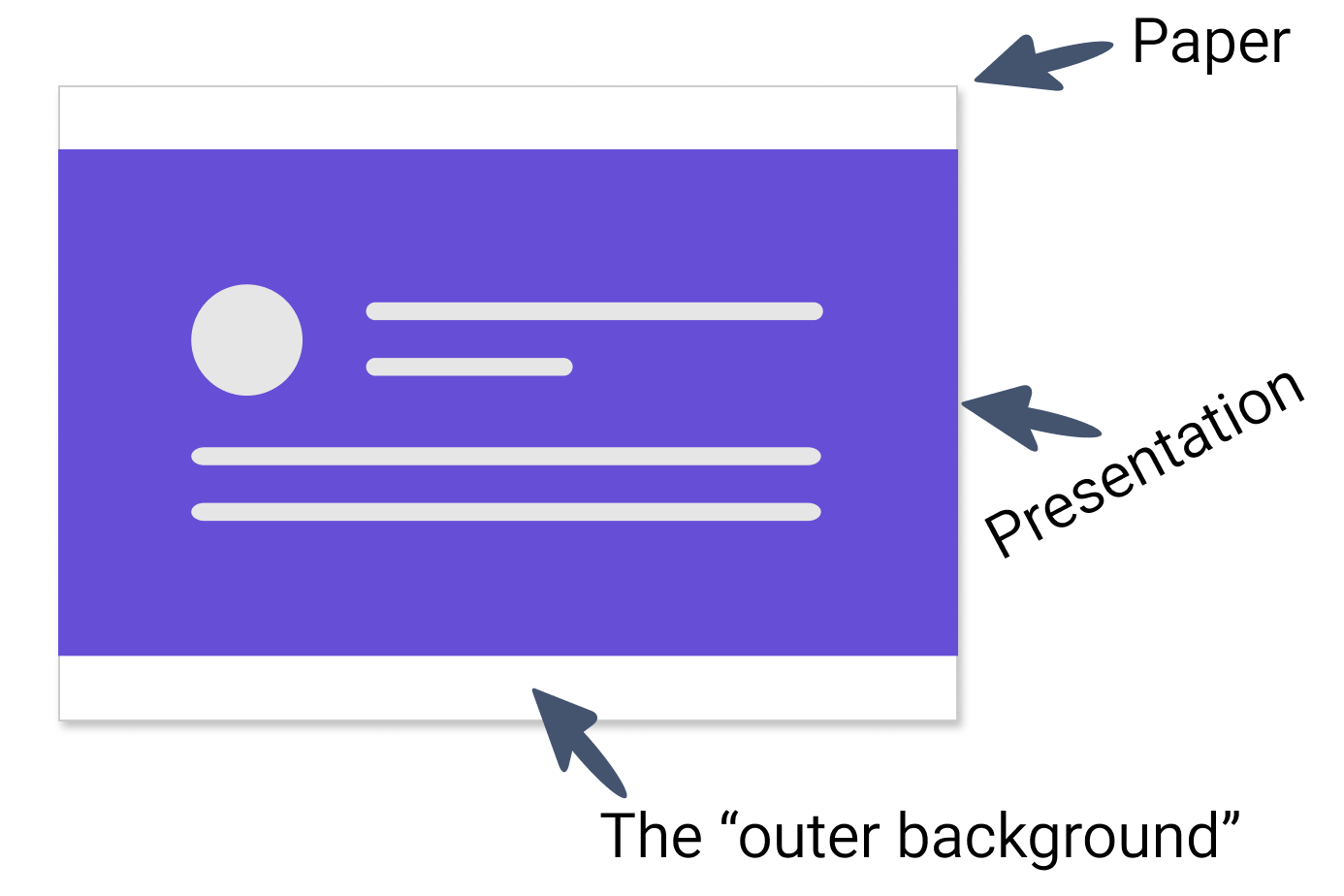
With this option, you can decide whether the styling for the outer background from the theme will be applied to the outer background - maybe coloring the whole page of paper, depending on the theme - or whether the outer background stays empty / white.
If you feel like your PDF export is too slow, try disabling “Fill page with outer background”: it requires a second pass for each page, so disabling it makes the export double as fast!
Page Layout
Page format
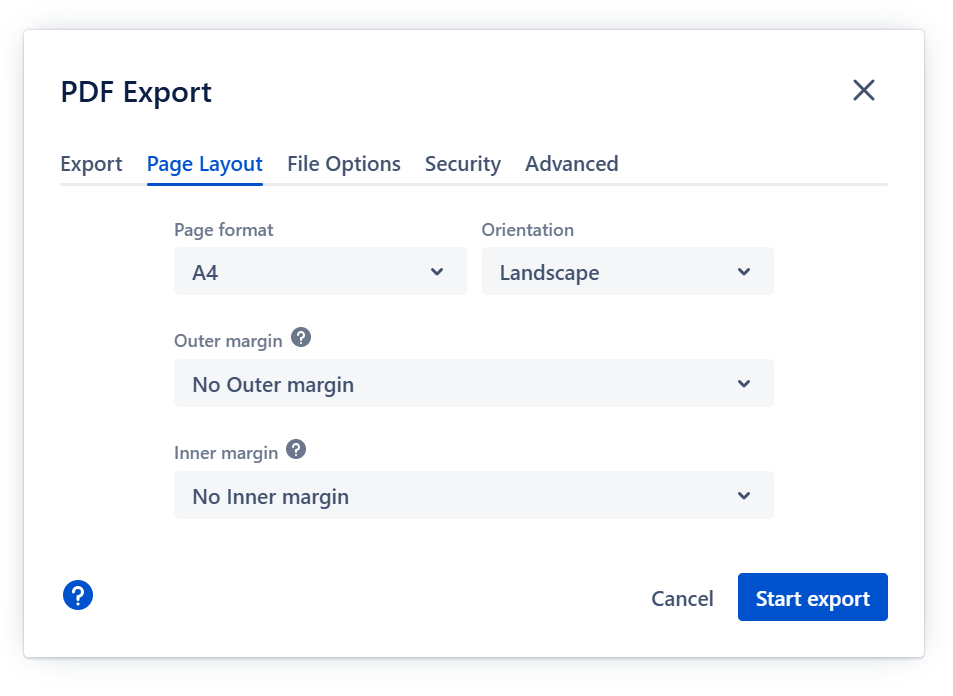
The size of the page for your export. Slide Presenter offers the most common formats out of the box, but you can also use a custom format to your liking.
Orientation
The orientation of your page: Landscape or portrait.
Outer margin and Inner margin
These are two different margins on the export pages:
-
The Outer margin always stays empty and is the margin between the edge of the page and the beginning of the area where the outer background of the theme is applied.
-
The Inner margin is the minimal margin between the edge of the outer background and the presentation content.
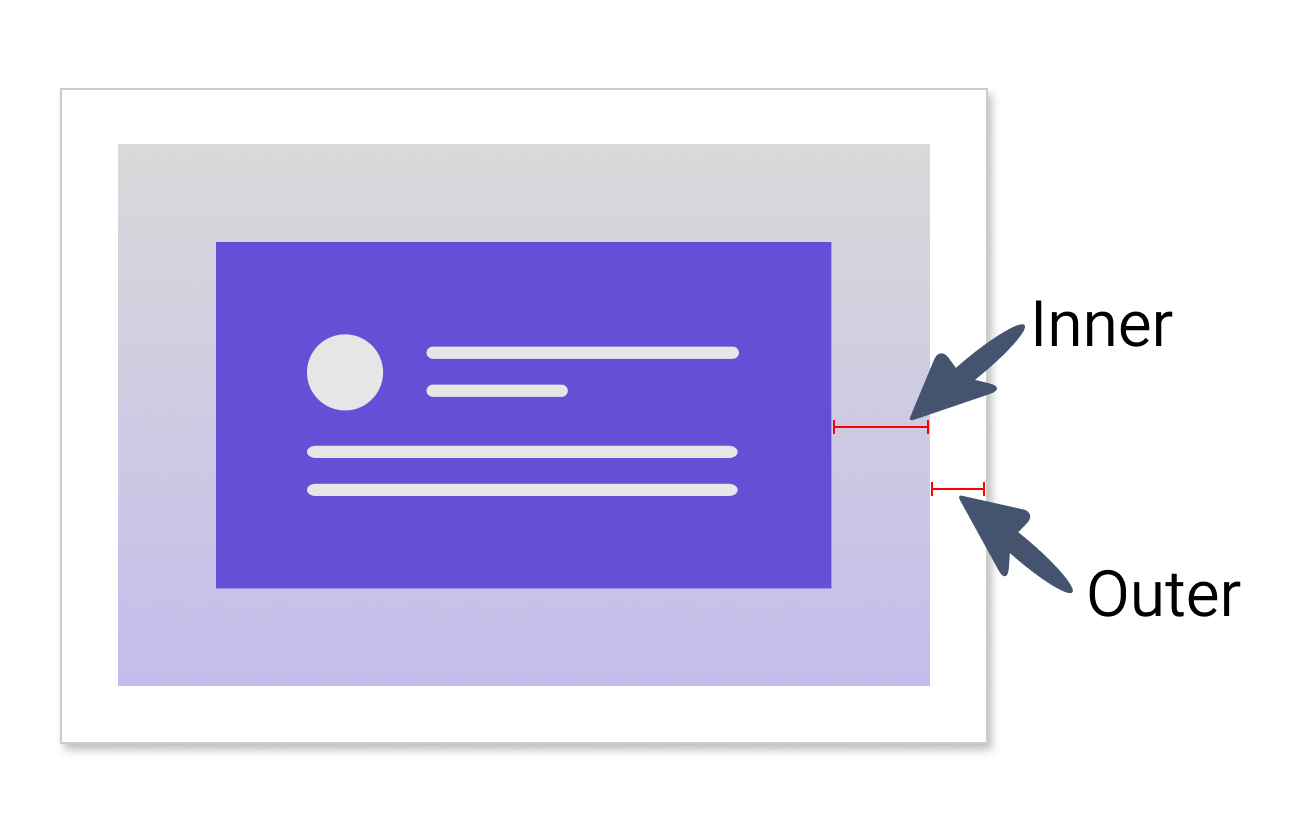
Even if the outer background is not used, the margin is still applied. The presentation content will use as much space of the page as possible while respecting the margins and its aspect ratio.
File options
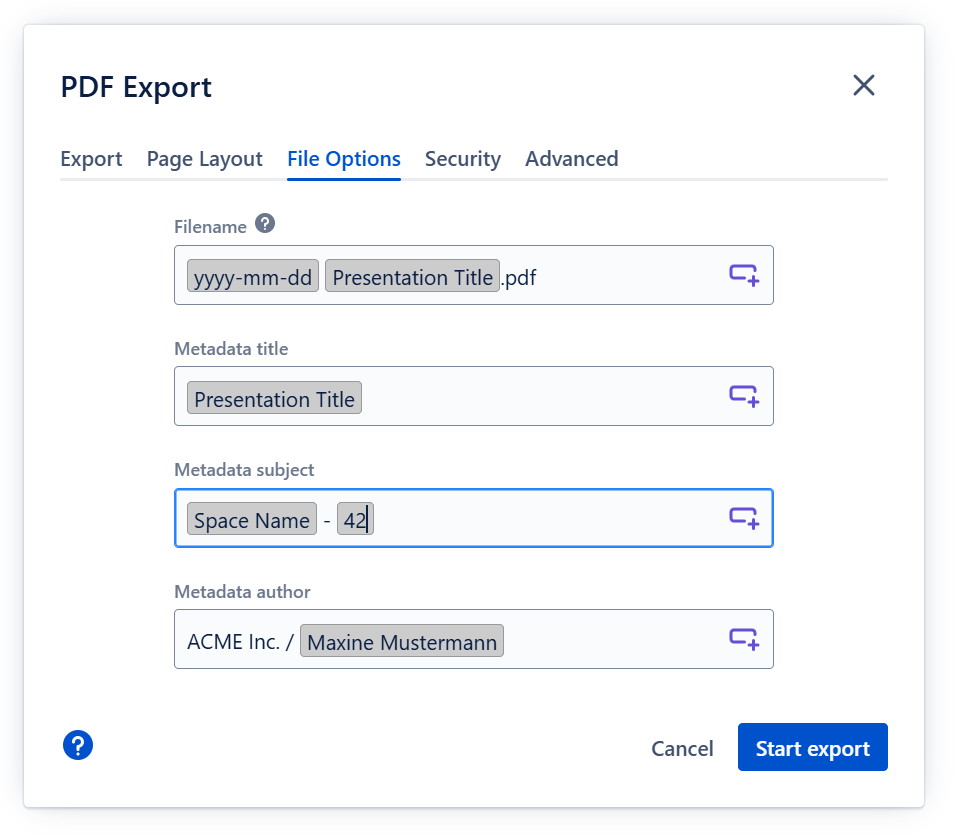
For all these options, you can use placeholders that are filled with properties of the current presentation. This is a great way to preset your preferred filename pattern, the name of the author etc. in the theme. Simply choose and add a placeholder with the icon at the end of the textbox.
Filename
The filename of the downloaded PDF file.
Metadata title, subject, author
Content of the corresponding metadata fields of the PDF file.
Security
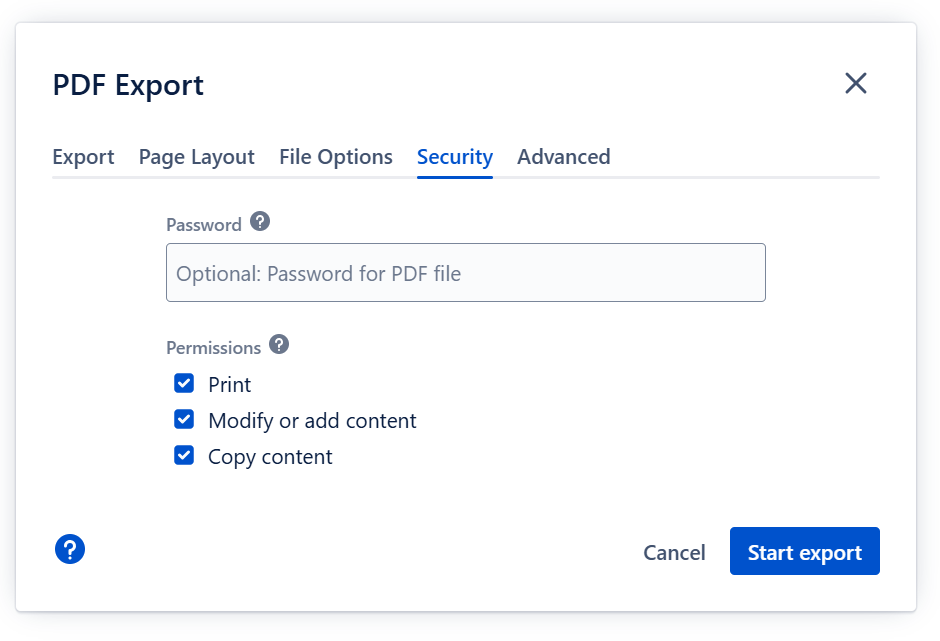
Password
You can password-protect the generated PDF file. Choose a password to your liking. Recipients of your PDF file will need the password to access the file.
Permissions
Decide what can be done with the PDF file: can it be printed, can it be modified, can content be copied?
Advanced
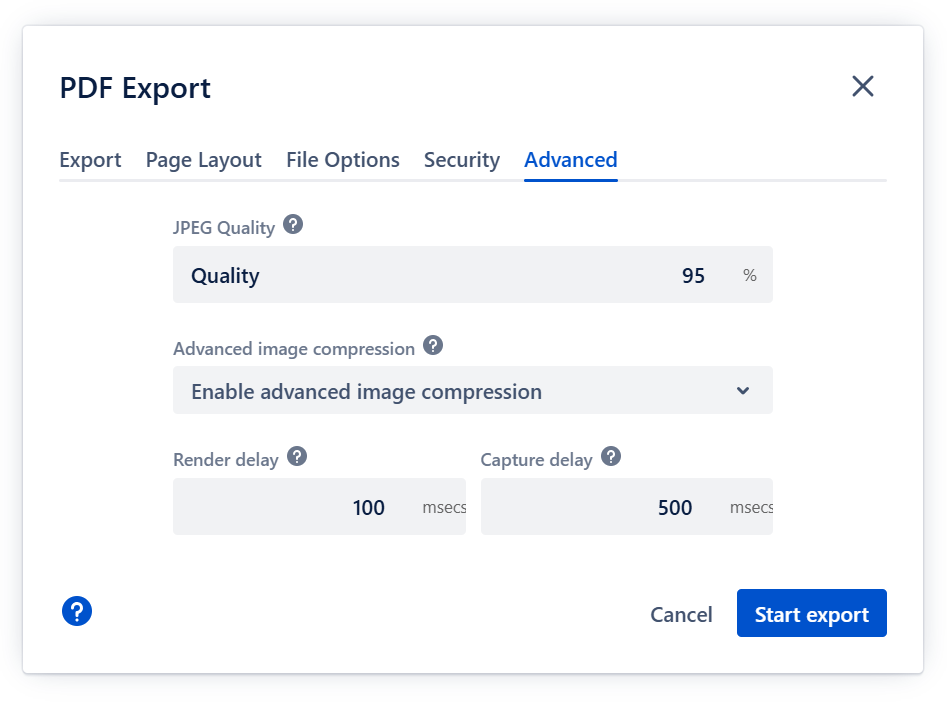
JPEG Quality
The compression quality of the exported slides. Lower numbers result in smaller files but also visible artifacts in the slides. For a good quality, aim at 95%.
Advanced image compression
Advanced image compression reduces the file size of the exported PDF file by compressing images with a complex compression algorithm. The size savings are paid for with longer computation times.
If you feel like your PDF export is too slow, try disabling the advanced image compression. It’s the biggest lever on export performance.
Render delay
Number of milliseconds the normal exporter (not the screen capture exporter) waits for each slide to let it settle before exporting. Depending on your content and your theme, you can fix visual artifacts by making this number higher.
Capture delay
Number of milliseconds the screen capture exporter waits for each slide to settle in the video stream. This has to take into account any delays in the video stream. If you experience exports with missing slide elements on slow computers, consider raising this number.