
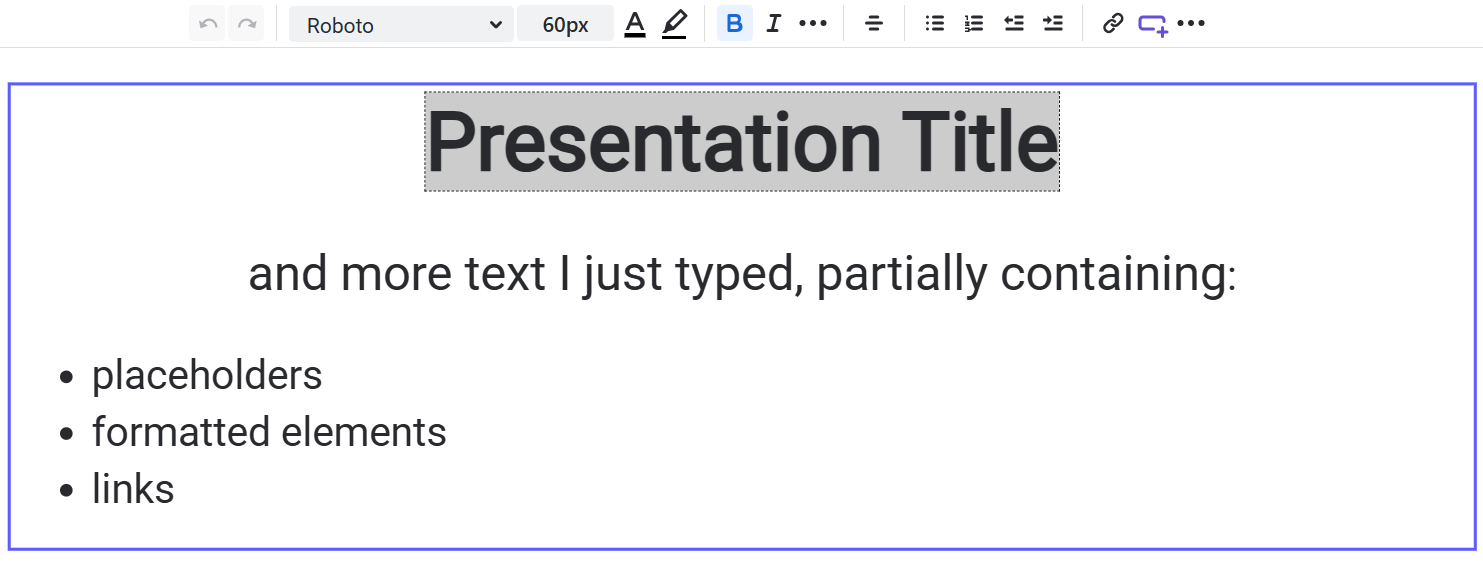
Text elements contain custom text you type right in the theme editor. You can also add placeholders in the text that will be replaced with properties of the presentation content.
Use text elements for presentation titles, footers and headers, but also for whole slides with static content, like slides with legal notes in the outro!
Editing text and the text toolbar
When you double click on a text element (or use the “edit” button in the floating toolbar), the text editor activates. You can start typing right away.
On top of the slide canvas, a text editor toolbar appears:

Use it to format the text. The options include:
-
Font family - pick from default fonts or from TTF files you added to the theme.
-
Font size
-
Color and highlight color
-
Bold, Italic, Strikethrough, Superscript…
-
Text indent: Left, Right, Center
-
Bullet point lists, numbered lists and general indent
-
Codeblocks, Quotes and horizontal separator lines
-
Links to websites
-
Placeholders - more on that below
Working with placeholders
Placeholders will be replaced with certain properties of the current presentation. You can add placeholders to your static text and format them just as if they are normal text.
When a user starts a presentation, Slide Presenter will replace all placeholders with the actual text taken from the current presentation context.
To add a placeholder, click on the 
Placeholders are picked from an extensive placeholder catalogue:
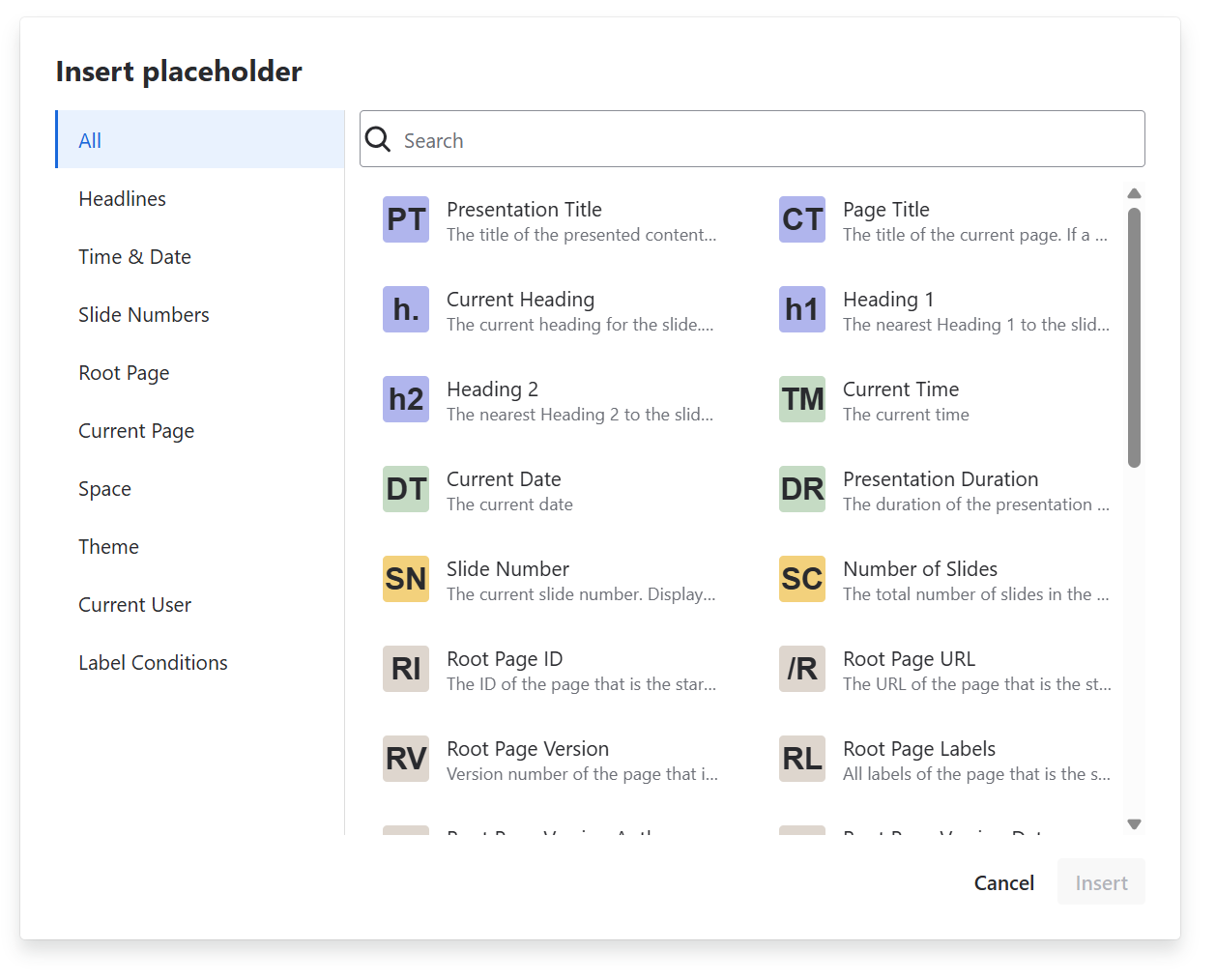
With some placeholders, you can pick additional options (arabic or roman number formatting, date formats, fallback texts etc.). These are pretty self-explanatory, except for the date and time formatting options. Learn more about date and time formatting here.
When using placeholders, remember to leave enough place in the text element so that even longer content fits. For example, it’s best to have long titles in mind when designing your title slides.
What happens if there is too much text?
The rule is: text never leaves the elements boundaries! The font size will be scaled down until the content fits into the boundaries.
While the text editor is active, the content is not scaled down. A red border notifies you of the overflown content.
Special text element attributes
Vertical alignment
Whether the content will be top, bottom or middle of the element box.
Please note that while the text editor is active, the content always is aligned top. When you close the text editor, the content snaps back to the chosen alignment.
Hide if empty
That’s a special one! If the text content is empty (no visible characters at all), the whole text element will be removed. This makes sense if you use placeholders in the text that might be empty and your slide would look cumbersome if the empty text element stays there.
As an example what’s possible, here’s a recipe for a “TOP SECRET” page overlay that only appears on pages with the tag “secret”:
-
Create a text element and add a placeholder of the type “Root Label Condition” with the following attributes:
-
Label to Search For: “secret”
-
Text if found: “TOP SECRET”
-
Text if not found: (leave this empty)
-
-
Set the “Hide if empty” attribute to true.
-
Style the text element in the most top secret flashy way you can imagine, maybe including a bold red background.
Now, if the presented root page has no “secret” tag, the text content will be empty and the whole element, including its bold red box, is hidden. Pages with a “secret” tag will be strongly marked.