
Place images on your slides! You can choose between images you have uploaded into the theme, and you can also use content-provided images like page header images (cloud only), user avatar images and space logos.
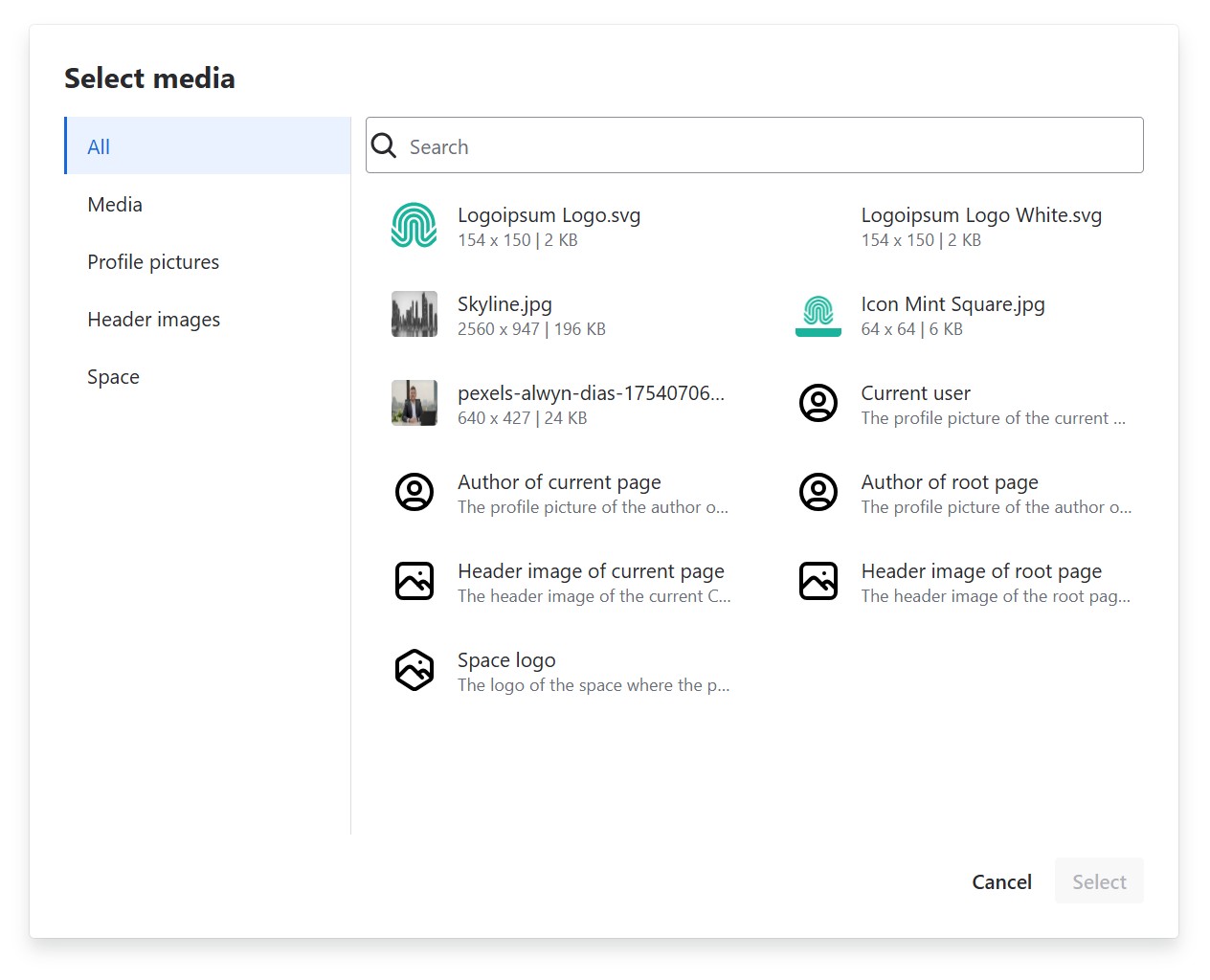
Replacement images
Not every page has a header image, not every user has an avatar image. For such cases, you can choose a replacement image that is used instead. If you do not choose one, the image will be empty and invisible.
It is a clever pattern to use the root page header image on the title slide and a nice replacement matching your CI in case there’s none.
A word about file sizes
The smaller your image files, the better! Keep in mind that the users of your theme all have to download the theme image files. Slide Presenter does not optimize your images any further, consider using external optimization before adding the image to your theme.
Special image element attributes
Aspect ratio
This just shows the original aspect ratio of the image, the current aspect ratio of the element and gives you the option to reset the aspect ratio to the original.
Object fit
This answers the question: What happens with the image if the aspect ratio of the element does not fit the original image aspect ratio? There are three options to choose from. Let’s use the following image as an example (using a stock image from Alwyn Dias, thank you!). It has an aspect ratio of 3:2, but in our slide we force it into an aspect ratio of 3:4.

The options:
|
Option |
Meaning |
Example at 3:4 |
|---|---|---|
|
Cover |
The image will cover the whole element while keeping its aspect ratio. Parts of the image will be cut off if necessary. |

|
|
Contain |
The image will be completely visible inside the element, keeping its aspect ratio. No parts of the image will be cut off, but the element will have empty space where the background shines through. This is the only situation where the background property of the image plays a role. |
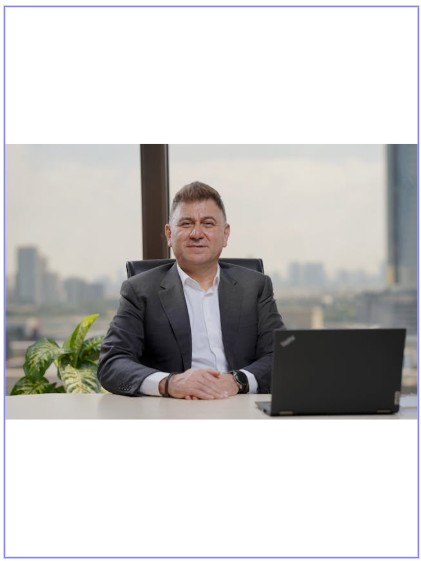
|
|
Fill |
The image will fill the whole element, stretching as necessary and ignoring its aspect ratio. |

|