
On the left side of the Slides Design is an overview of all slides in your theme, just as you might be used to from presentation software.
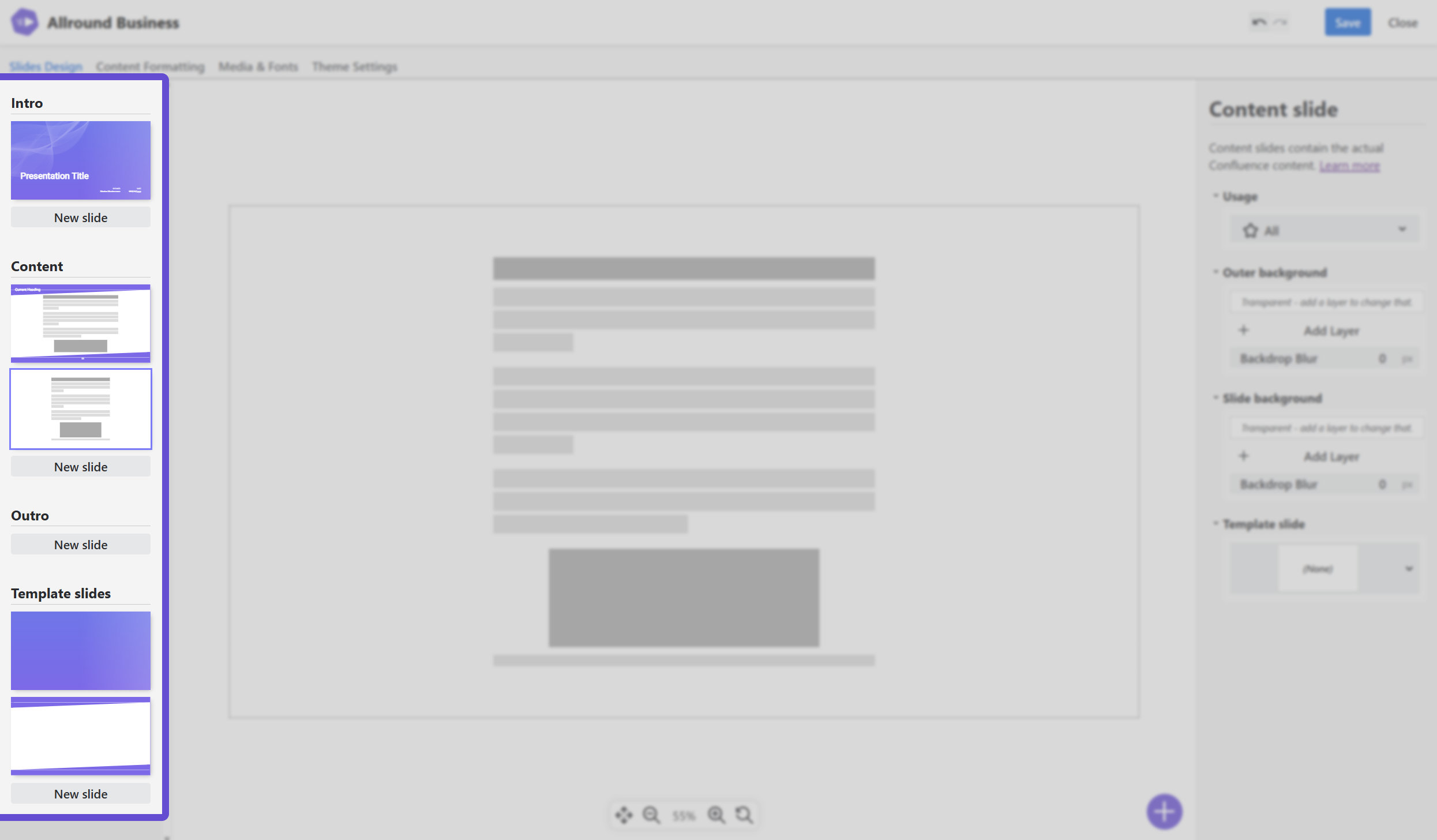
The slides are sorted by slide types. Get an overview of the concept of slide types on Slides Design.
-
Add new slides by clicking “New slide” for the type of slide you want to create.
-
Delete slides by hovering the mouse pointer over them and clicking the appearing three dots on the top right of the slide, then choose “Delete”.
💡 Note that you can never delete the last content slide - every theme needs at least one! -
Copy slides by choosing “Copy” in the same menu.
-
Change the order of slides by simply dragging them around. Note that some rules apply here, see below.
About sorting slides
When you drag slides around to sort them, some rules apply:
-
Content slides can only be sorted with other content slides, they cannot be moved to “Intro” etc.
-
Same for template slides - they can only be sorted with other template slides.
-
Intro and Outro slides can be interchanged. They can even be dragged to template slides to become one.
💡 If there’s no other slide in the target category yet, the dragging might fail - just create a new slide as the “drop target” and remove it afterwards.
What the order of the slides actually means
The actual meaning of the slide order depends on the type of slide:
-
Intro and Outro slides appear in the presentation exactly in the sorting order.
-
For Template slides, the sorting has no meaning, it’s just for your felt theme tidiness.
-
For Content slides, things are a little more complicated and explained on the Content slides page.
Next: Learn about content slides, intro & outro slides and template slides.
Then: Learn how to edit a slide!