Content slides are where your real presentation content lives. They are the only slide type that can contain content elements - one per slide.
Learn more about how your presentation content is put on the slides in the content elements documentation.
Usage: Usecases for content slides
Some presentation content looks best on slides that is specifically designed for that kind of content. For example,
-
slides that contain only one image might have a dark background
-
slides with a big table might need a wider content element
That’s what “usage” is for on content slides. A content slide with a certain usage will only be used for matching content. There are even usage types to start or end a new content page!
TL;DR: Use different usages to design slides for certain content: big tables, images, solo headlines and so on!
The usage types
Slide Presenter supports the following usage types:
|
Usage |
What for |
|---|---|
|
Based on slide content |
|
|
Table |
Slides with a single column that contain exactly one table with:
|
|
Image |
Slides with a single column that contain exactly one image with a size of at least 200 x 200 pixels. |
|
Solo heading |
Slides with a single column that contain only a single headline (h1-h6). |
|
Code |
Slides with a single column that contain a code macro - further content is okay. |
|
All |
The default usage - always chosen if nothing else matches. |
|
Based on layout |
|
|
Only [X] column layouts |
From single column to five columns, every column layout style has a matching usage. |
|
Before & after pages |
|
|
Before new page |
Added at the beginning of each new content page. So, if the presentation contains a page and its 5 child pages, this slide will be inserted 6 times, once for each of the content pages. This is the only content slide usage that may optionally contain a content element - you can decide if the content should start on this slide directly or not. Important: Usage of this slide type automatically removes the page title headline of the page content. You have to add the page title by yourself, usually by placing a “page title” placeholder on the slide. |
|
After page |
Added after each content page. This is the only content slide usage that may not contain a content element - as the page has already ended, obviously there’s no more content to display. |
How Slide Presenter decides which content slide to use
You can create multiple content slides, even multiple content slides with the same usage. This begs the question: How does Slide Presenter decide which content slide to use for your content? It’s a two stage process:
-
First decision: The usage of the content slide
If the theme contains a content slide with a fitting usage, this will be used. The usage “All” will always be used as the default if nothing else matches. -
Second decision: Cycle through
For each usage, Slide Presenter remembers which content slide was used last. It will pick the next one. When it arrives at the last one, it will start the cycle again.
So, if you have 3 different content slides with usage “All”, your presentation will use the slides like 1 - 2 - 3 - 1 - 2 - 3 and so on.
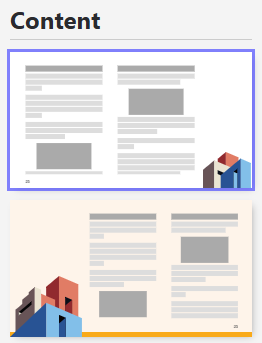
This allows you to create different effects - for example, you can cycle through different slide backgrounds or alternate left and right illustrations. An example:
This is the theme
The theme contains two content slides with usage “All”:
This is the resulting presentation
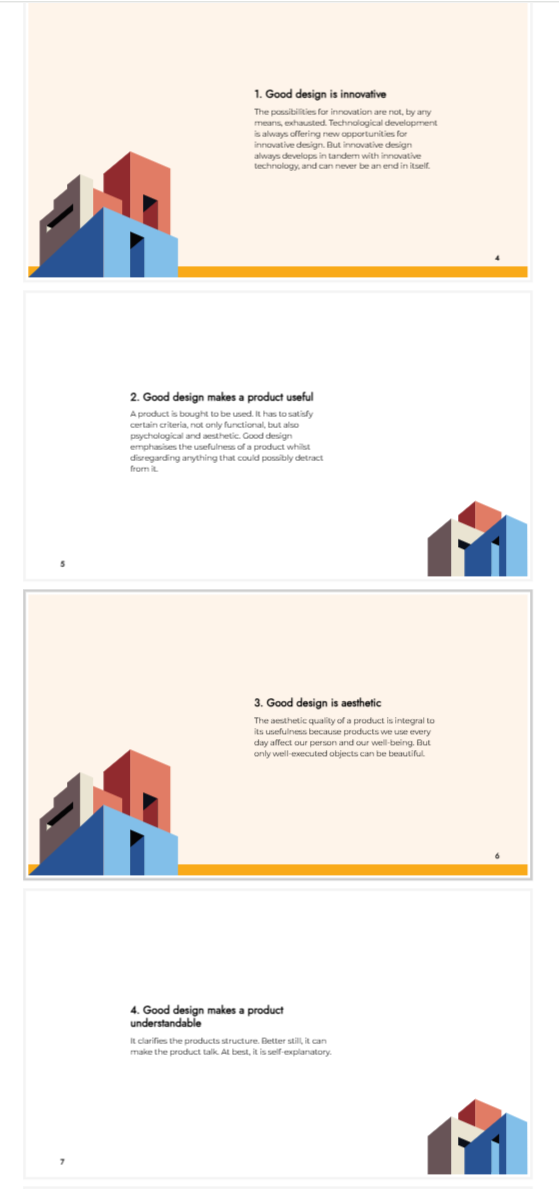
The presentation cycles through the two content slides: