
Content elements are where the real content of your presentation will appear! Each slide can only have one content element. Slide Presenter will fill the content element with as much presentation content as makes sense, then start a new slide.
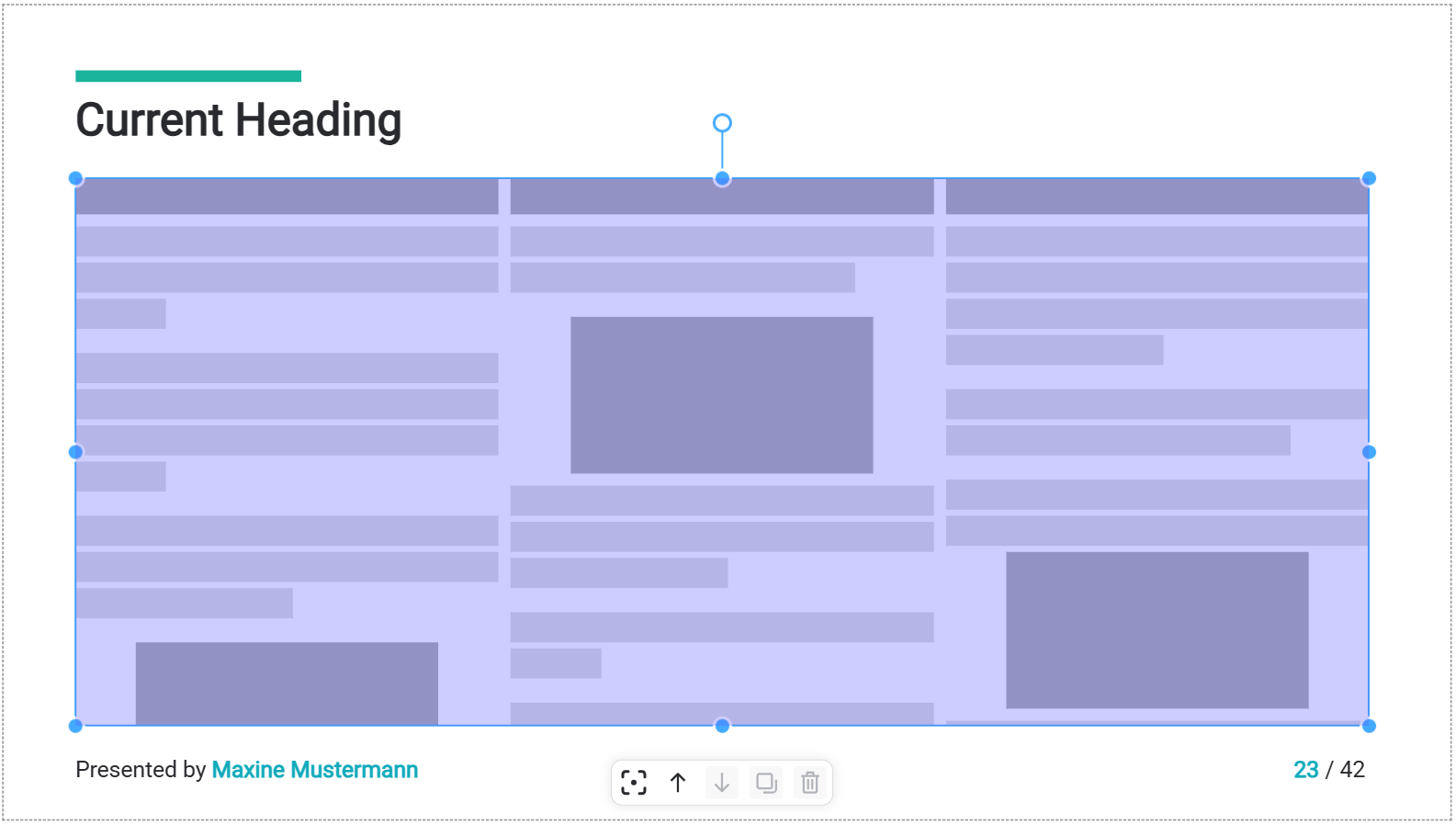
The content inside of the content element is styled in the Content Formatting area!
Special attributes of content elements
Column layout
Offers two settings and a preview option for column layouts.
-
Preview Layout: When it comes to the real presentation, the column layout configuration of the actual content is used. But until then, you can choose the column layout used here in the theme editor.
This is useful to check the column gap or place a background exactly behind one of the content columns. If the usage of the slide is tied to a certain column layout, the preview layout is fixed. -
Column Gap: Defines how big the gap between columns is, in pixels.
-
Single Col Margin: Single column content tends to look too wide if the single column spans the whole content element. To make it look better, you can define a margin in percent of the content element here. Single column layouts will have this margin on both sides of the content, being centered. Values between 0% and 30% are valid.
Modify content
Determines whether to remove the dominant headline of the slide from the content.
Why removing the dominant headline might be a good idea
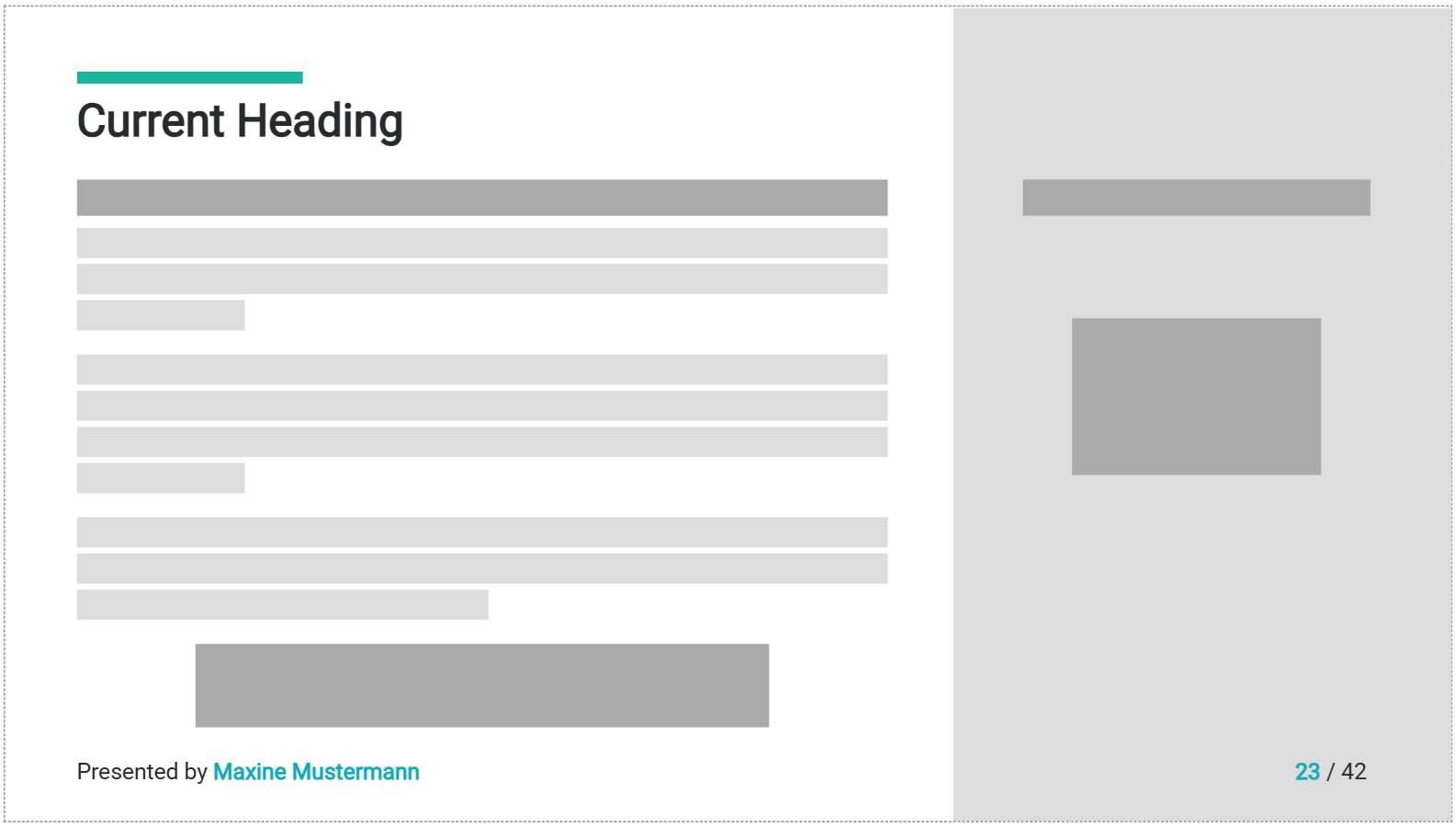
Assume you want to have the headline of the current slide in a separated header, using a placeholder in a text element, like this:
By default, the content element will contain the headline as well, resulting in slides with two headlines like this:
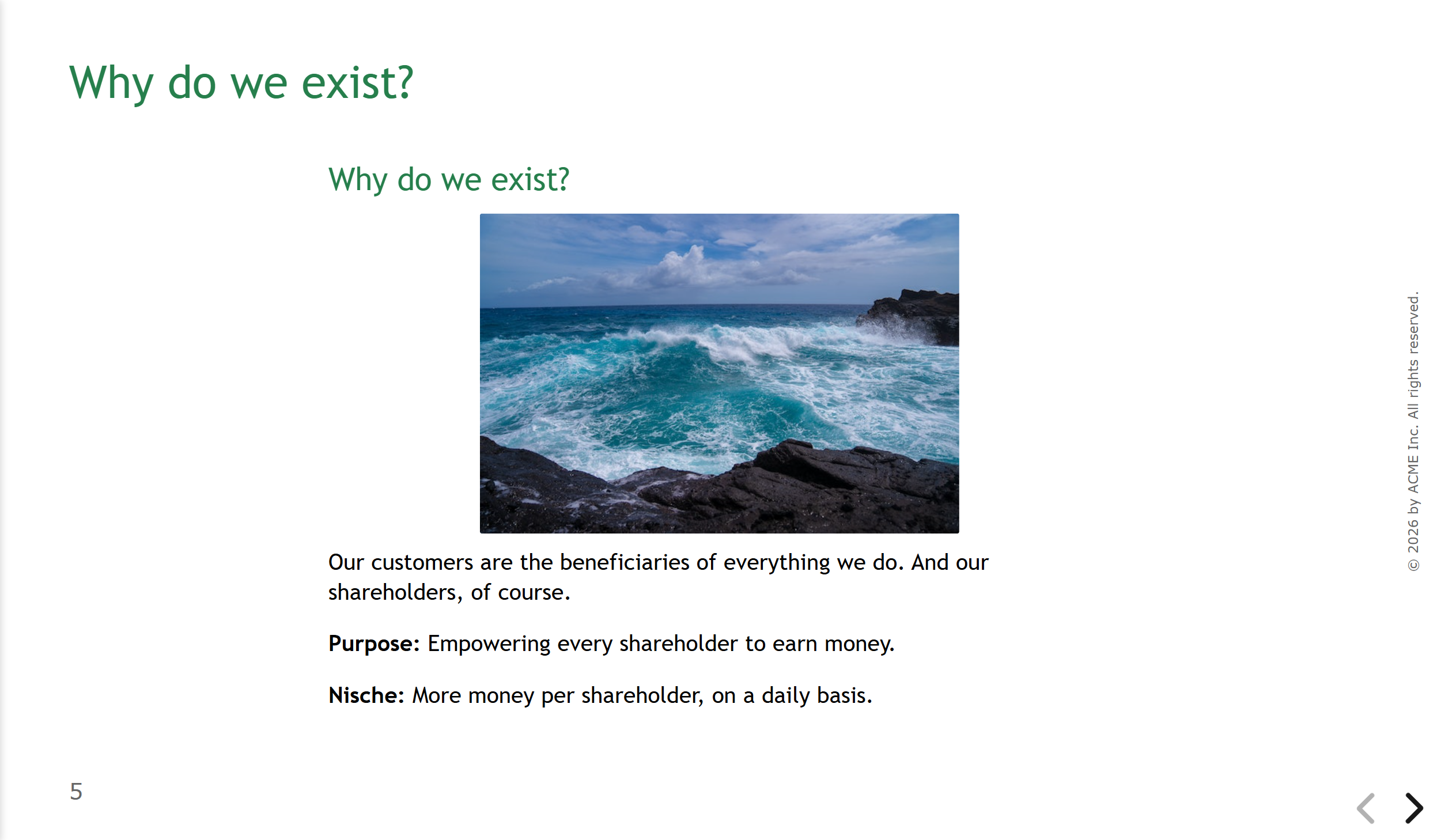
Note the double “Why do we exist?” on the slide - one from your placeholder, the other from the original content. That’s obviously not ideal.
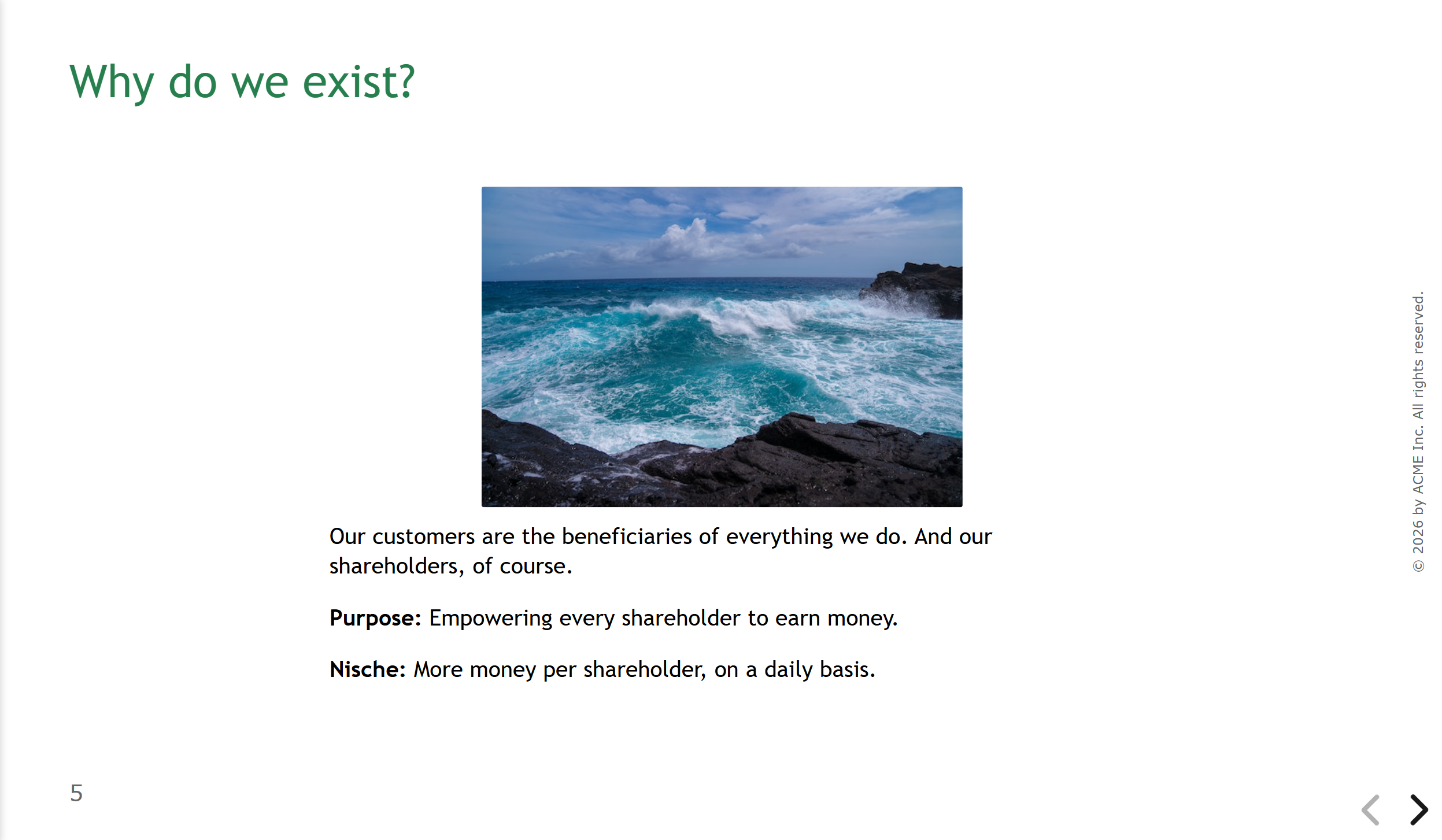
The “Remove dominant headline” option solves this. It removes the headline from the content so the slide will look like this:
Deep Dive: Headline Analysis
What we just described is the easiest case: One headline on the slide, done. But what happens when there are multiple headlines, for example one in each layout column? The following rules apply:
-
We only look at the first headline in each layout column - and it has to start the content in that column. If there’s an image or a text paragraph above the headline, we consider it “not dominant”.
-
When there are multiple headlines, the most important one wins: one column with a H2 and one column with a H3 → the H2 is the dominant headline and will be removed.
-
When there are multiple equally most important headlines, we call it a draw: two columns, each with a H2 → we do not remove any headline and use “Headline A | Headline B” as the slide title in placeholders.
Are you struggling with empty slides because the only content was a headline and it got removed?
When slides contain nothing but a headline, the “Remove dominant headline” option causes an empty slide. If you do not like that, create a content slide with usage type “Solo Headline”. This slide only applies if there’s only one headline so you can style the slide to look good anyway.
Vertical alignment
If the content is not as high as the content element, will it be aligned top, bottom or middle? “Middle” is the default and what people usually expect from presentations.
Note that columns in the content are always top aligned to each other. This vertical alignment option moves the content block as a whole.